Slack App

Slack App integration for Currents - Playwright test notifications and alerts

Integrate Slack with Currents to receive real-time Playwright test notifications and failure alerts directly in your team's channels. The Slack App helps engineering teams stay informed about test results without leaving their workflow.

Use Cases

  • Instant failure alerts: Get notified immediately when Playwright tests fail, allowing your team to respond quickly before issues reach production.

  • Flaky test detection: Receive Slack alerts when tests exhibit flaky behavior, helping maintain test suite reliability.

  • Team routing: Automatically mention the right team members based on which tests failed - route checkout failures to the payments team, API failures to backend engineers.

  • Release gating: Send notifications to release managers when smoke tests or critical tests fail on main or release branches.

  • On-call escalation: Page on-call engineers when critical Playwright tests fail in production environments.

The integration supports organization-level installation, per-project configuration, multiple notification destinations, and advanced filtering options.

Installation

Connecting Slack to Your Organization

The Slack App integration is installed at the organization level and can be configured for individual projects.

  1. Navigate to Project Settings > Integrations

  2. Find the Slack section and click Connect

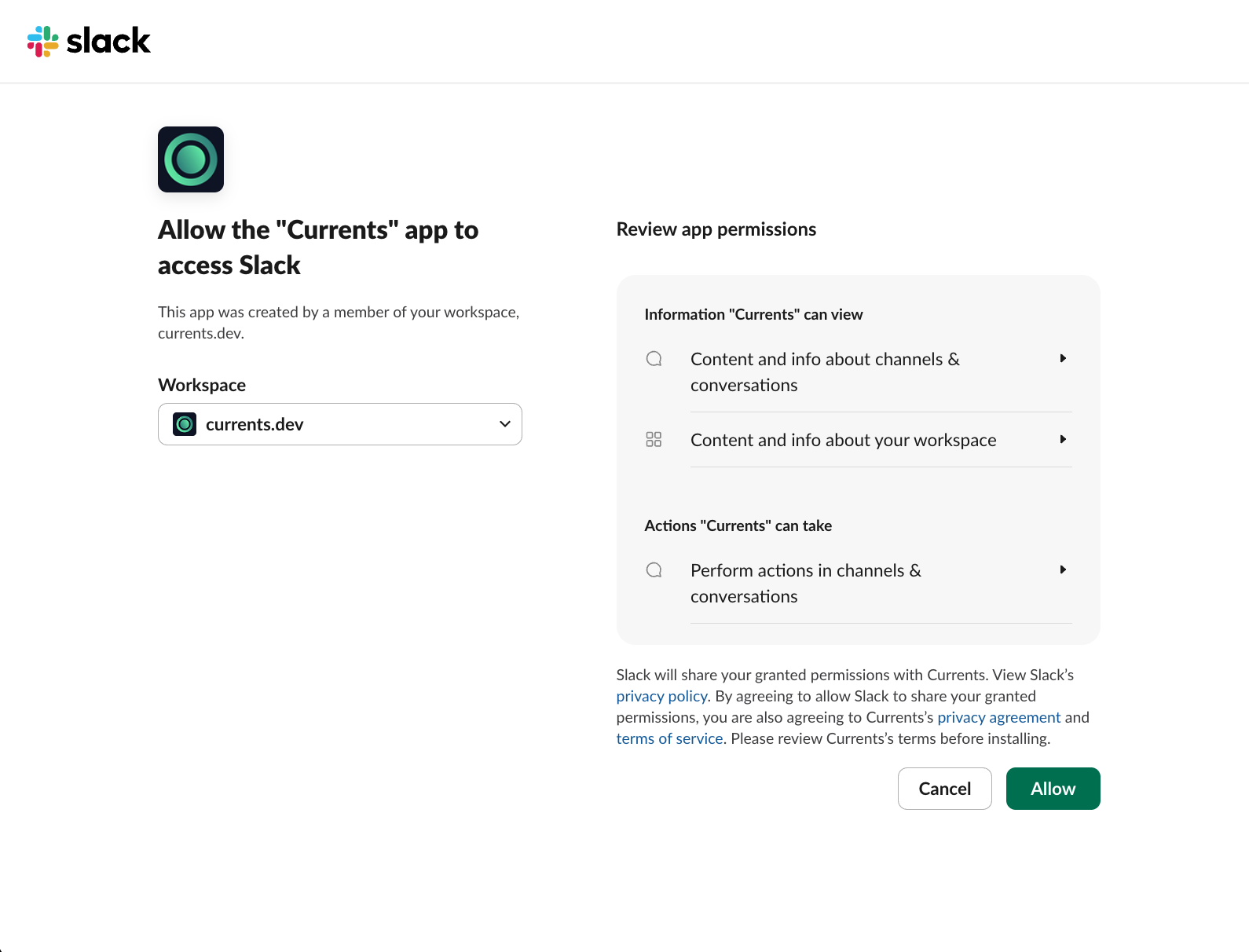
  3. You'll be redirected to Slack to authorize the Currents app

  4. Click Allow to install the application in your Slack workspace

After installation, you'll receive a welcome message in Slack confirming the connection.

The Slack installation is organization-wide. Once connected, you can enable Slack notifications for any project within your organization.

Enabling Notifications for a Project

After connecting Slack to your organization:

  1. Navigate to Project Settings > Integrations > Slack

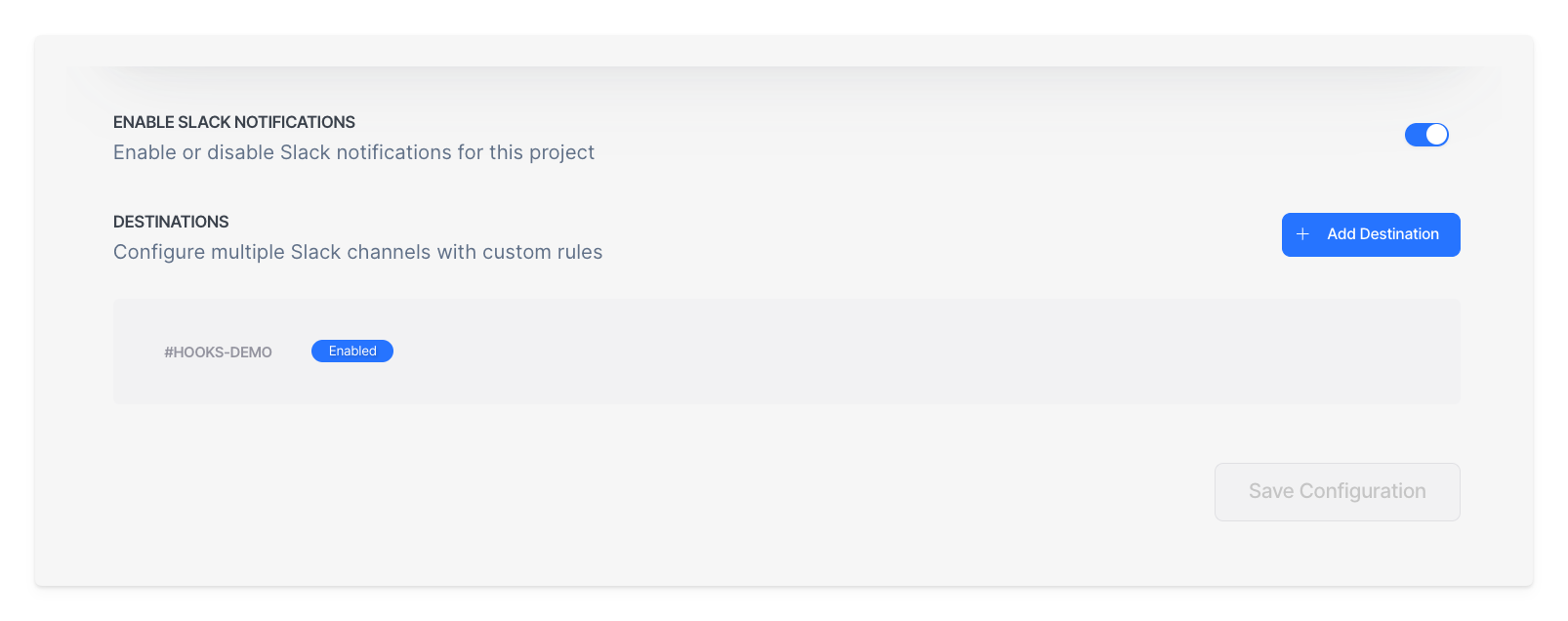
  2. Click Enable Notifications to create a Slack configuration for the project

  3. Configure your notification preferences (see sections below)

  4. Click Save to apply your settings

You can enable or disable Slack notifications for each project independently without affecting the organization-level installation.

Notification Destinations

Each project can have up to 10 notification destinations, allowing you to send notifications to different Slack channels based on your needs.

Adding a Destination

  1. In the Slack integration settings, click Add Destination

  2. Select a Slack channel from the dropdown, or enter the channel details manually

  3. Configure the notification settings for this destination

  4. Click Save

Manual Channel Entry: For organizations with many channels, you can manually enter the Channel ID and Channel Name instead of selecting from the dropdown. This is useful when Slack's API limitations prevent listing all channels.

Managing Destinations

Each destination can be:

  • Enabled/Disabled individually - Toggle notifications for specific channels without deleting the configuration

  • Configured independently - Each destination has its own notification settings, filters, and mention rules

Run Notifications

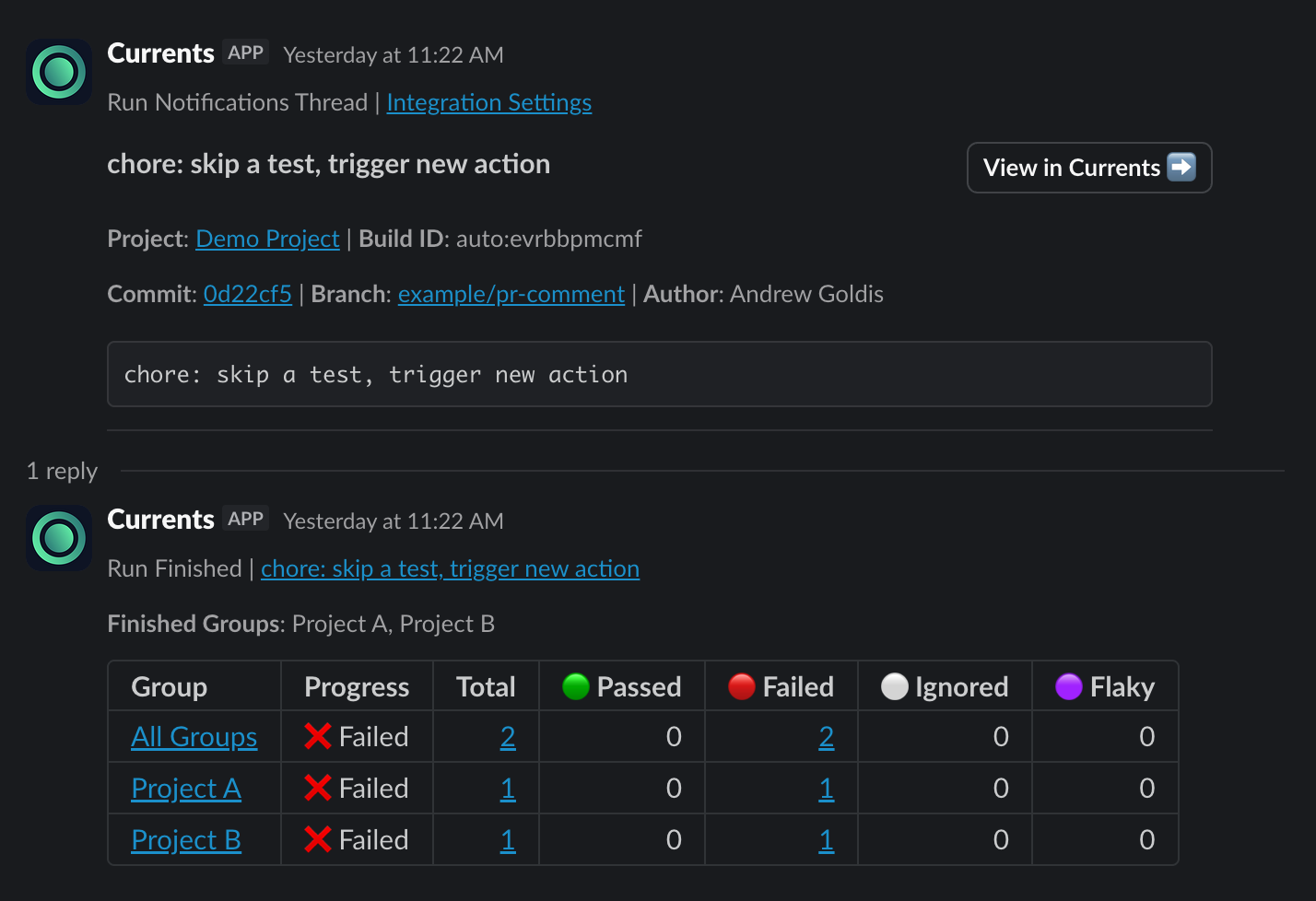
Run notifications provide a summary of the entire test run. These are sent when a run completes and use Slack threads to organize related messages.

How Threading Works

When Currents sends run notifications:

  1. A main message is posted indicating notifications are available for the run

  2. Detailed results are added as replies in a thread

  3. Subsequent updates (like individual test failures) appear in the same thread

This keeps your Slack channels organized and prevents notification overload.

Notification Modes

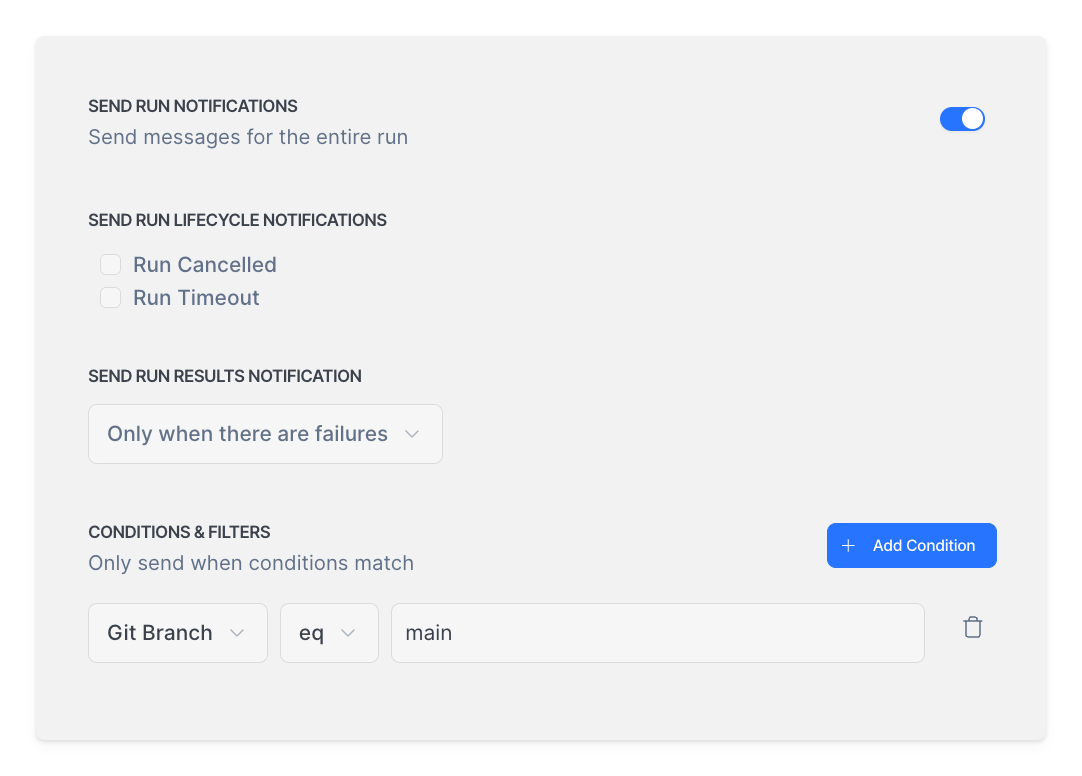
Configure when run notifications are sent:

Mode
Description

Always send

Send notifications for every run, regardless of outcome

Only on failures

Send notifications only when there are failed tests

Only on flaky tests

Send notifications only when flaky tests are detected

Additional Run Events

You can also enable notifications for:

  • Run Canceled - When a run is canceled manually or via fail-fast strategy

  • Run Timeout - When a run times out before completion

Filtering Run Notifications

Apply conditions to control which runs trigger notifications:

Filter
Type
Description

Git Branch

String

The git branch name for the test run

Git Commit Message

String

The git commit message that triggered the run

Tags

Array

The tags associated with the test run

Example: To only receive notifications for production deployments:

  • Set Tags includes any: production

Or to notify only for main branch runs:

  • Set Git Branch matches: main

Individual Test Notifications

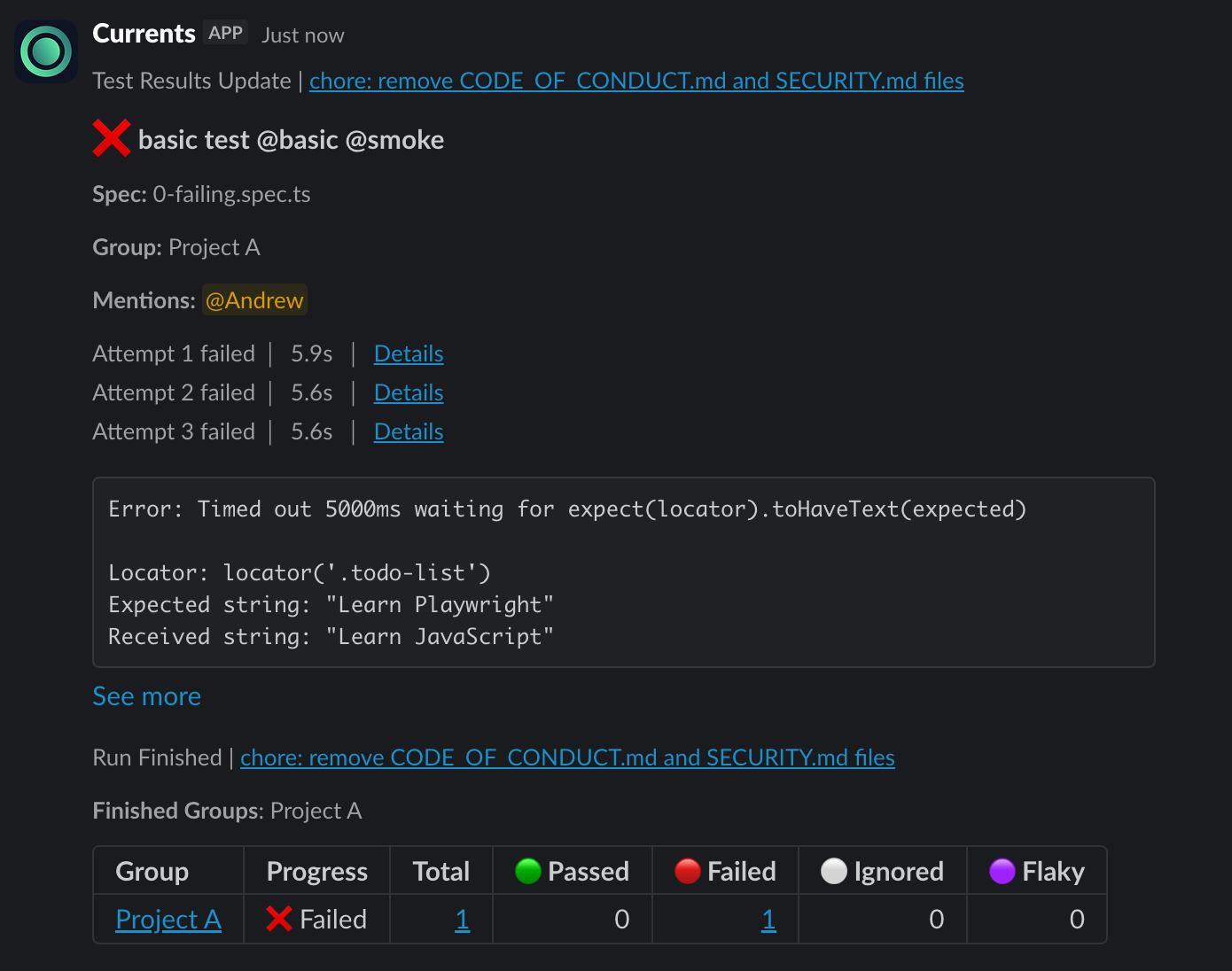
Individual test notifications send a dedicated message for each failed or flaky test, providing detailed information about specific failures.

Enabling Individual Test Notifications

  1. In your destination settings, find the Individual Tests section

  2. Toggle Enable to activate individual test notifications

  3. Select the notification mode

  4. Optionally, add conditions to filter which tests trigger notifications

Notification Modes

Mode
Description

Notify on failed

Send notifications only for failed tests

Notify on flaky

Send notifications only for flaky tests

Notify on failed or flaky

Send notifications for both failed and flaky tests

Filtering Test Notifications

Filter individual test notifications based on test and run properties:

Filter
Type
Description

Git Branch

String

The git branch name for the test run

Git Commit Message

String

The git commit message that triggered the run

Tags

Array

The tags associated with the test

Test Title

String

The title of the test

Test File Path

String

The file path of the test

Example: To only receive notifications for checkout tests:

  • Set Test File Path matches: checkout/.*

Or to notify for critical tests:

  • Set Tags includes any: critical, smoke

Message Content

Individual test notifications include:

  • Test name and file location

  • Failure reason and error message

  • Attempt details (for retried tests)

  • Direct link to the test in Currents dashboard

  • Mentioned users (if configured)

Annotation-Based Mentions

The Slack App integration supports mentioning users directly in notifications based on test annotations. When a test fails, the configured users or groups are notified in the Slack message.

Enabling Annotation Mentions

  1. In your destination settings, find the Annotation Mentions section

  2. Toggle Enable to activate annotation-based mentions

  3. Notifications will now include mentions based on test annotations

Add annotations to your tests to trigger Slack mentions using the notify:slack annotation type. See Mention Formats for supported formats.

Example

See Playwright Annotations for more details on using annotations, including how to combine notify:slack with other annotation types like owner.

UI-Based Mention Rules

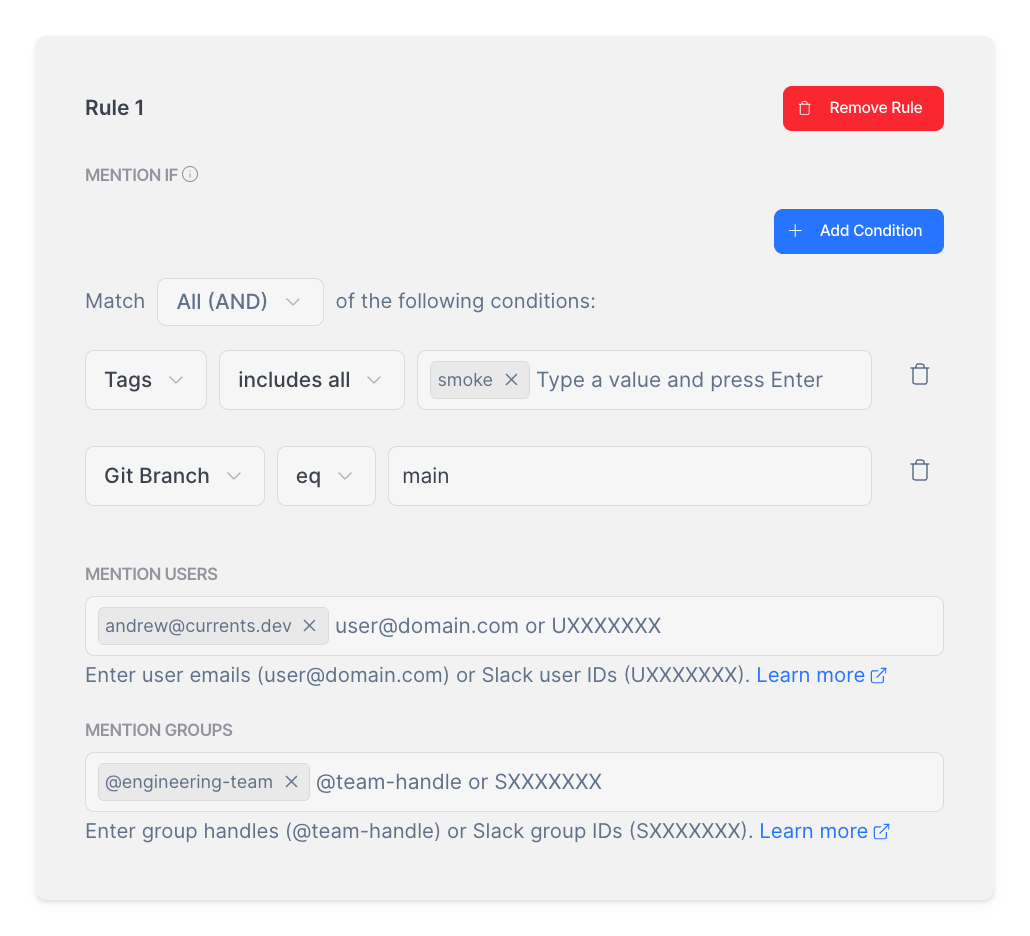
In addition to code annotations, you can configure mention rules directly in the Currents UI. This allows you to set up notification routing without modifying your test code.

Creating Mention Rules

  1. In your destination settings, find the Mention Rules section

  2. Click Add Rule

  3. Configure conditions using the available filters

  4. Add the users and groups to mention (see Mention Formats for supported formats)

  5. Click Save

If no conditions are defined in a rule, the specified users and groups will be mentioned for all matching test notifications.

Available Conditions

Mention rules support the following filters:

Filter
Type
Description

Git Branch

String

The git branch name for the test run

Git Commit Message

String

The git commit message that triggered the run

Tags

Array

The tags associated with the test

Test Title

String

The title of the test

Test File Path

String

The file path of the test

Rule Examples

Condition
Mentions
Use Case

Test File Path matches .*checkout.*

@payments-team

Route checkout failures to payments team

Tags includes any critical

Escalate critical test failures

Git Branch eq main

@release-managers

Notify release team of main branch failures

Mention Formats

Both Annotation-Based Mentions and UI-Based Mention Rules support the following formats for specifying users and groups to mention:

Format
Description
Example Value

User Email

Email address associated with Slack account

User ID

Slack user ID

user:U01RWNBFGER

User Group (Team)

Slack user group ID

team:S07JCUP81EG

Slack Handle

Slack username or group handle

@engineering-team

Multiple Mentions

Comma-separated combination of formats

user:U01RWNBFGER, team:S07JCUP81EG, [email protected]

Finding Slack IDs: See Slack's documentation for instructions on finding user and group IDs.

Disabling Slack Integration

Disable for a Project

To disable Slack notifications for a specific project:

  1. Navigate to Project Settings > Integrations > Slack

  2. Toggle off Enable Notifications

The project configuration is preserved but notifications are paused.

Disconnect Slack

To completely remove the Slack integration:

  1. Navigate to Project Settings > Integrations > Slack

  2. Click Disconnect

This removes the organization-level Slack installation and disables notifications for all projects.

FAQ

Can I send notifications to multiple channels?

Yes, each project supports up to 10 destinations. Each destination can target a different Slack channel with its own configuration.

Why am I not receiving notifications?

Check the following:

  1. Project-level toggle - Ensure "Enable Notifications" is turned on

  2. Destination toggle - Ensure the specific destination is enabled

  3. Notification mode - If set to "Only on failures", passing runs won't trigger notifications

  4. Filters - Check if any tag or branch filters are excluding your runs

  5. Mention rules - Ensure conditions match your test properties

Can I use both annotation mentions and UI rules?

Yes, both methods work together. Annotation-based mentions take precedence and are combined with UI-configured rules.

What happens when a run has multiple groups?

By default, notifications are sent when all groups complete. You may still receive multiple notifications if one group finishes before others are discovered. For example, if one group completes before other groups are known, an early notification may be sent.

Last updated

Was this helpful?