> For the complete documentation index, see [llms.txt](https://docs.currents.dev/llms.txt). Markdown versions of documentation pages are available by appending `.md` to page URLs; this page is available as [Markdown](https://docs.currents.dev/resources/integrations/linear/usage.md).

# Usage

With the integration enabled for your project, open any test execution in Currents to create issues, link existing ones, or review what is already associated with that test.

## Open the issues panel

1. Open a test execution
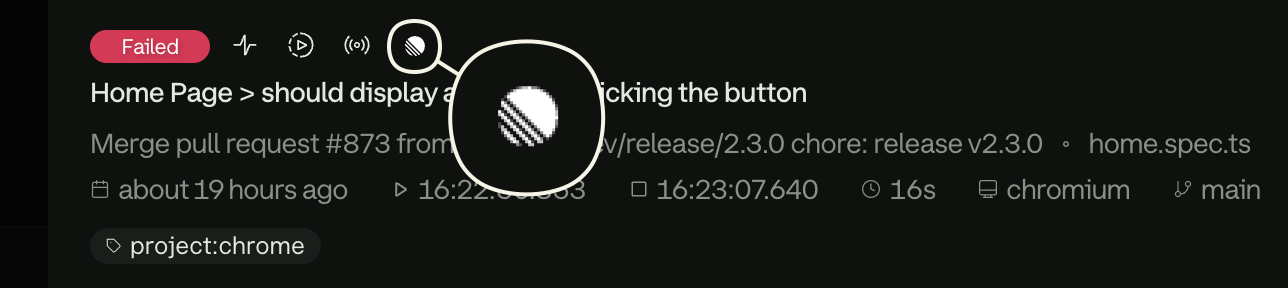
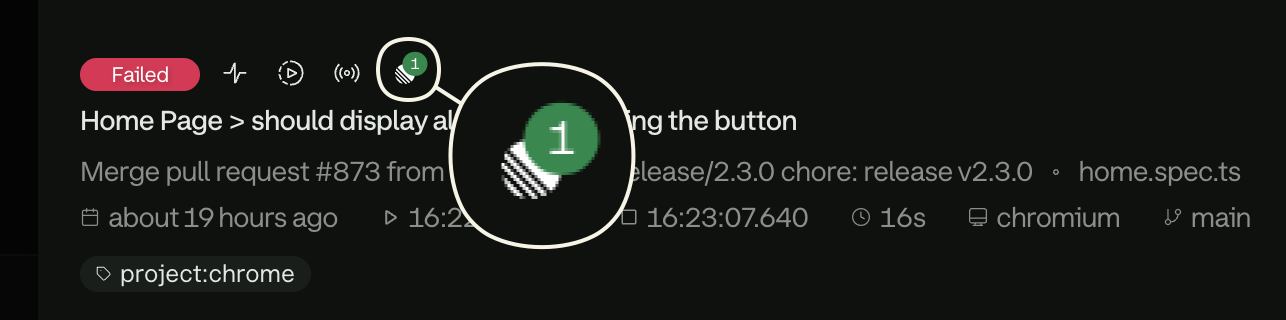
2. Click the **Linear** icon in the test details toolbar

The icon appears only when Linear is enabled for the project. A badge shows how many issues are already associated with the test.

<figure><img src="/files/F7xGEC8Y49aFkpKOY7uw" alt="A test has linked Linear issues" width="400"><figcaption><p>A test has linked Linear issues</p></figcaption></figure>

<figure><img src="/files/Jwmtiy7OOZ2jxZS0RGwy" alt="A test has no existing Linear issues" width="400"><figcaption><p>A test has no existing Linear issues</p></figcaption></figure>

From the panel you can list linked issues, create a new one, or search for an existing issue to link.

## Create a new issue

| Field               | Required | Notes                                                                               |
| ------------------- | -------- | ----------------------------------------------------------------------------------- |
| **Team**            | Yes      | Linear team that owns the issue                                                     |
| **Project**         | No       | Optional in Linear — issues can be created without one                              |
| **Title**           | Yes      | Prefilled from the failing test                                                     |
| **Description**     | No       | Empty by default                                                                    |
| **Assignee**        | No       | Dropdown of members on the selected team                                            |
| **Include Details** | —        | Adds test name, git information, and Currents links to the description              |
| **Attempt**         | —        | Shown when **Include Details** is on; picker for which failing attempt to reference |

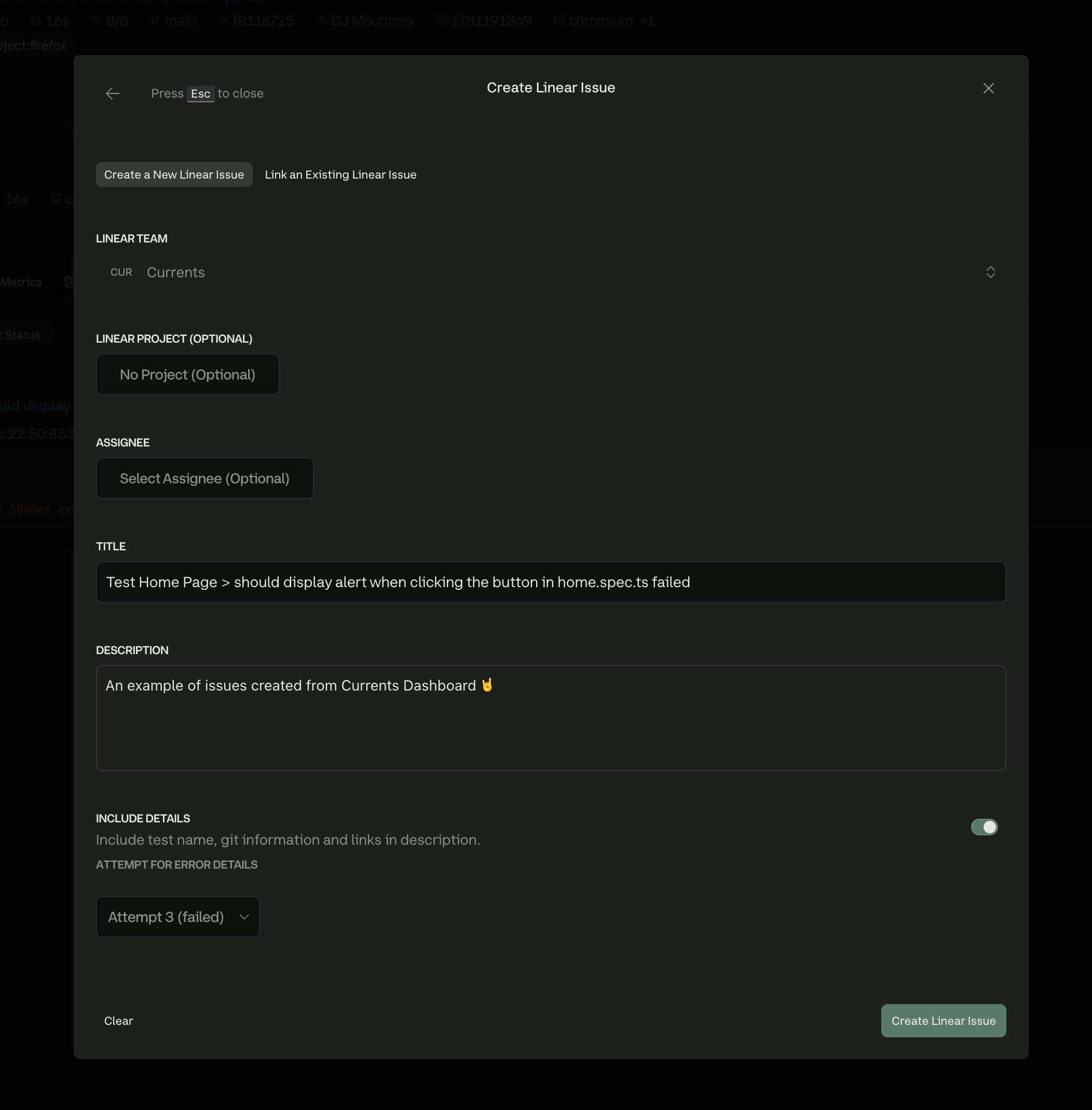
Steps:

1. Select a **Team**
2. Optionally select a **Project**
3. Review the prefilled **Title** and edit it if needed
4. Optionally add a **Description** — the field starts empty
5. Optionally choose an **Assignee**
6. Toggle **Include Details** to fill the description with test context (test name, git information, and links back to Currents). Add a short note of your own if it helps — for example, what failed or what the assignee should check first
7. If **Include Details** is on, pick the failing **Attempt**
8. Click **Create Issue**

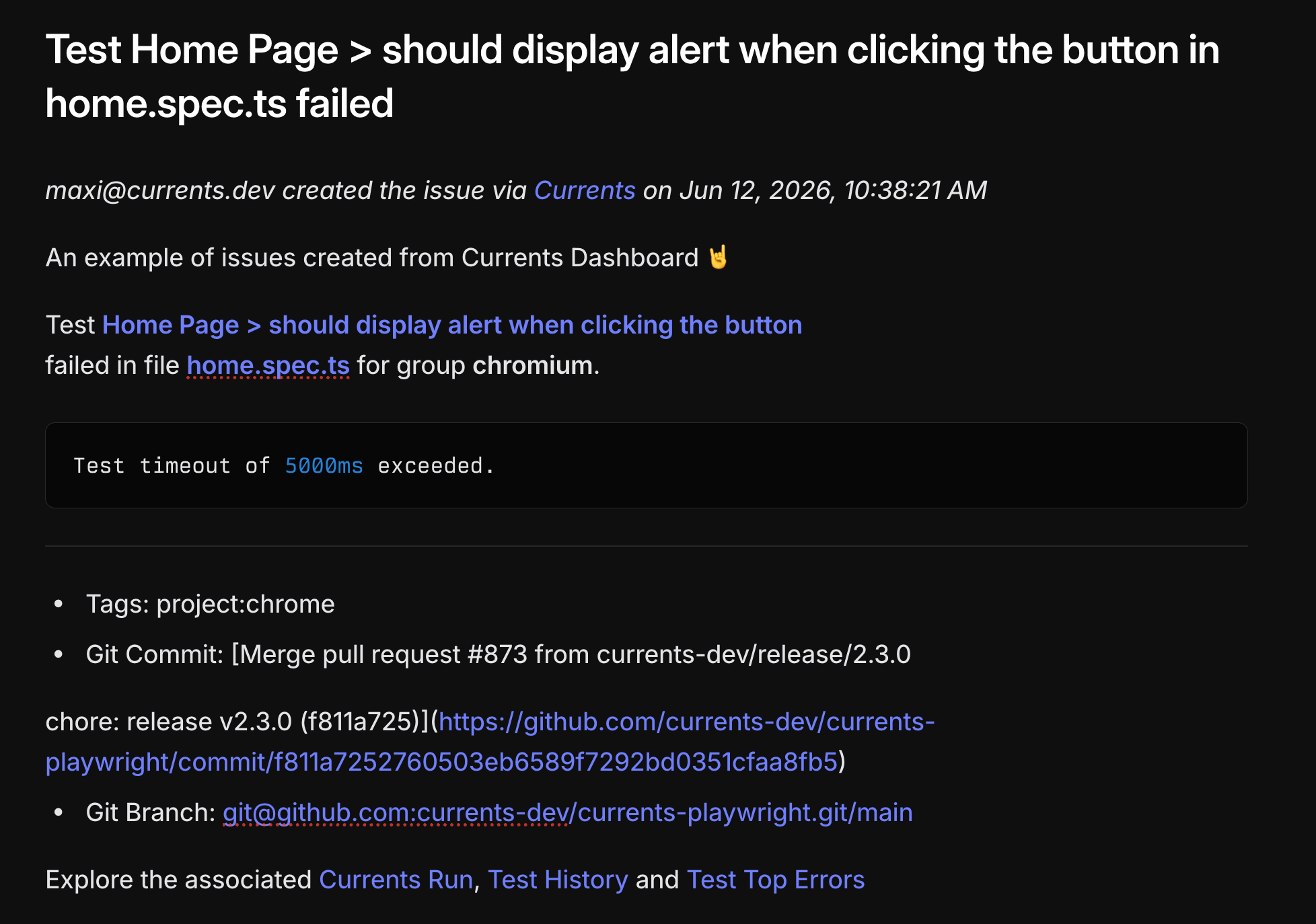
Example of a newly created issue:

<figure><img src="/files/PHx5aizHpqMiBBTmaFiU" alt="Example of New Linear Issue creation form"><figcaption><p>Example of New Linear Issue creation form</p></figcaption></figure>

<figure><img src="/files/diXnZtO07bskvesUaNVw" alt="Example of a new Linear issue created from Currents" width="400"><figcaption><p>Example of a new Linear issue created from Currents</p></figcaption></figure>

## Link an existing issue

Linking adds a comment on the Linear issue and stores the association in Currents.

| Field               | Notes                                                                    |
| ------------------- | ------------------------------------------------------------------------ |
| **Project** filter  | Optional; narrows search before you type                                 |
| **Search**          | Matches issue title and description                                      |
| **Comment**         | Your message on the Linear issue                                         |
| **Include Details** | Appends test name, git information, and Currents links to the comment    |
| **Attempt**         | Shown when **Include Details** is on; which failing attempt to reference |

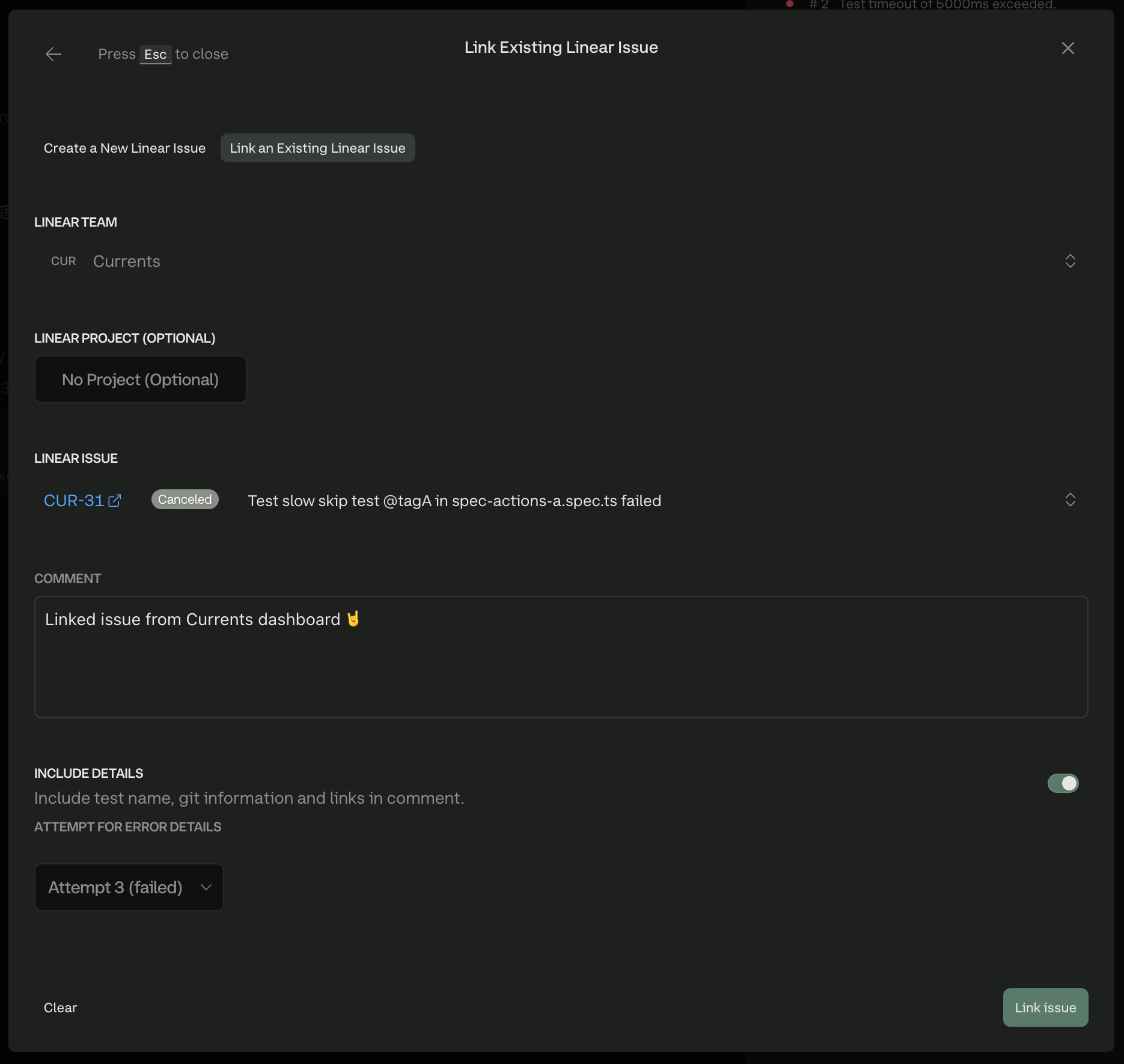
Steps:

1. Optionally filter by **Project**
2. Search by title or description
3. Select the issue
4. Write your **Comment**
5. Toggle **Include Details** if you want test context in the comment
6. If **Include Details** is on, pick the failing **Attempt**
7. Click **Link issue**

Example of commenting on an existing issue:

<figure><img src="/files/fUjQmgxl20i9Wp64AMrS" alt="Example of linking test failure to an existing Linear issue"><figcaption><p>Example of linking test failure to an existing Linear issue</p></figcaption></figure>

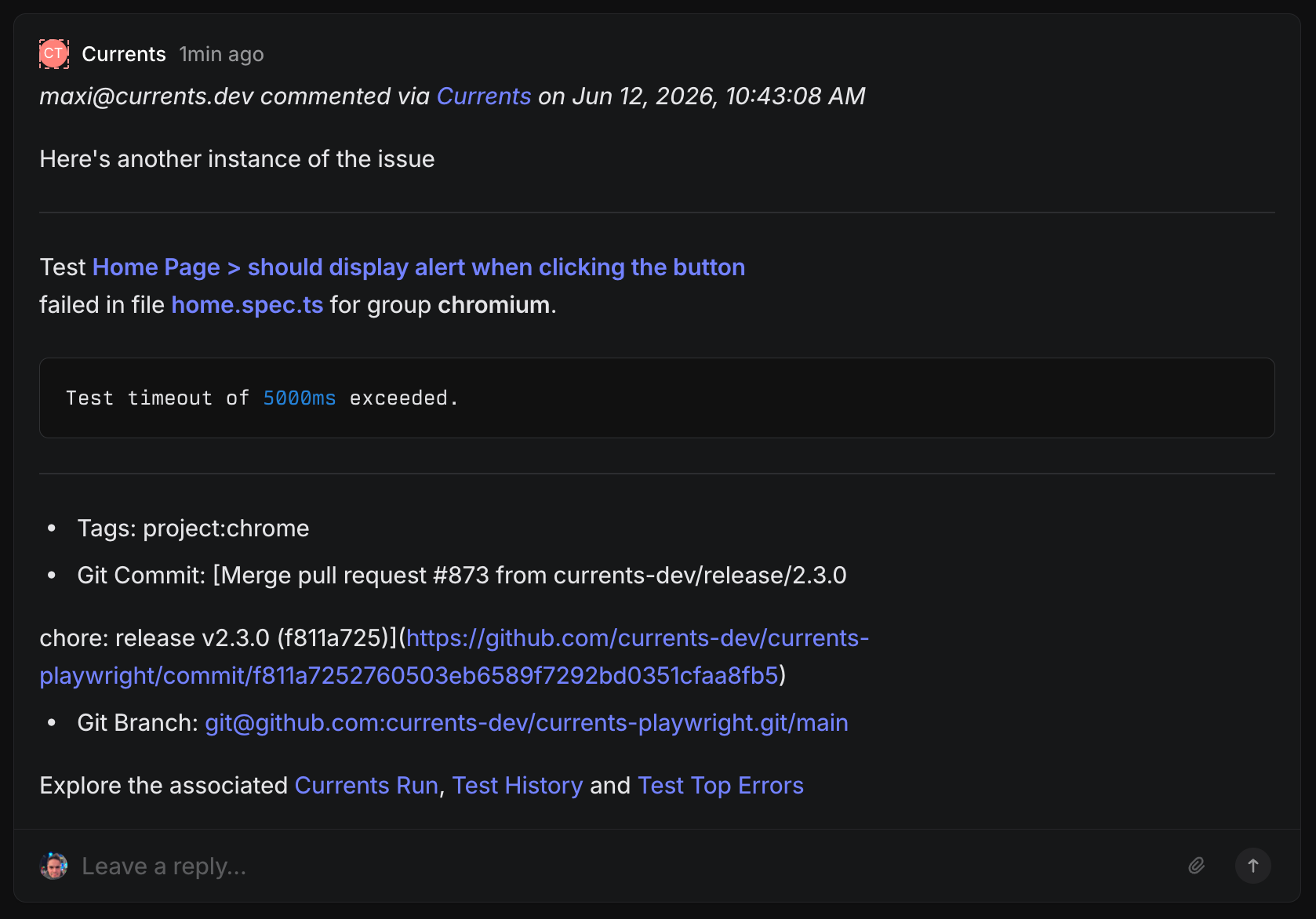
<figure><img src="/files/VbVl3QRcdxGVuqgMoAKg" alt="Example of a Linear issue comment originating from Currents"><figcaption><p>Example of a Linear issue comment originating from Currents</p></figcaption></figure>

## Manage linked issues

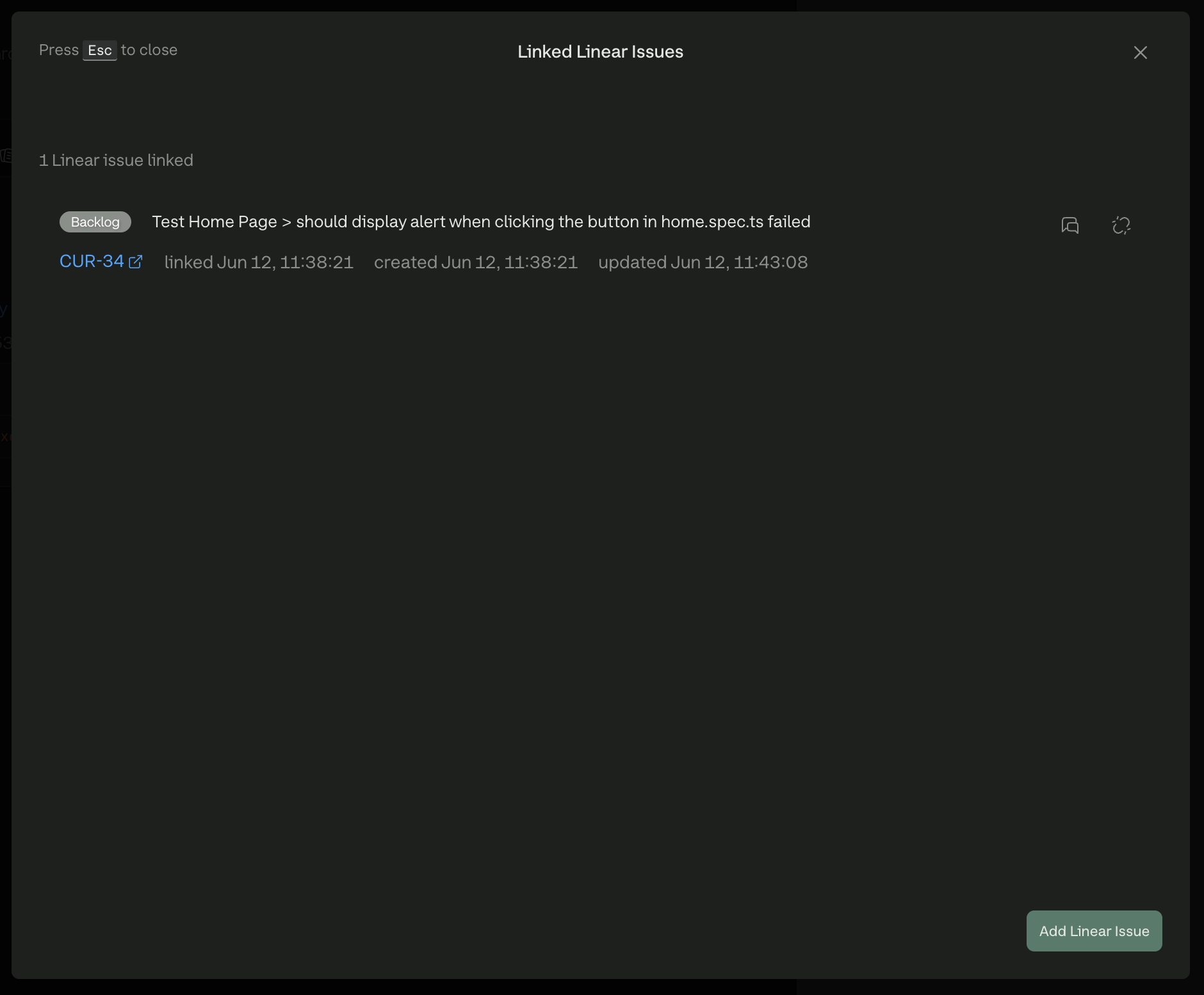
The issues panel lists every issue associated with the current test:

* Click the issue ID to open it in Linear (new tab)
* Click 💬 to add another comment
* Click ⛓️‍💥 to remove the association in Currents
* Click **Add Linear Issue** to create or link another issue

<figure><img src="/files/2h4fx7vYk9RLfA91RUuN" alt="Listing Linear issues related to the test"><figcaption><p>Listing Linear issues related to the test</p></figcaption></figure>

### Notes

* Links are one-way: Currents tracks the association; changes in Linear do not automatically update Currents
* Deleting or closing an issue in Linear does not remove it from Currents — unlink manually if needed
* Comments posted from Currents include a link back to the test

### Limitations

* One Linear workspace per Currents organization
* Only the fields listed above are available when creating or linking issues; other Linear properties (custom fields, labels, priority, and so on) must be set in Linear


---

# Agent Instructions
This documentation is published with GitBook. GitBook is the documentation platform designed so that both humans and AI agents can read, navigate, and reason over technical content effectively. Learn more at gitbook.com.

## Querying This Documentation
If you need additional information that is not directly available in this page, you can query the documentation dynamically by asking a question.

Perform an HTTP GET request on the current page URL with the `ask` query parameter, and the optional `goal` query parameter:

```
GET https://docs.currents.dev/resources/integrations/linear/usage.md?ask=<question>&goal=<endgoal>
```

`ask` is the immediate question: it should be specific, self-contained, and written in natural language.
`goal` is optional and describes the broader end goal you are ultimately trying to accomplish on behalf of the user. GitBook uses it to tailor the answer towards what is most useful for that goal.

The response will contain a direct answer to the question and relevant excerpts and sources from the documentation.

Use this mechanism when the answer is not explicitly present in the current page, you need clarification or additional context, or you want to retrieve related documentation sections.