> For the complete documentation index, see [llms.txt](https://docs.currents.dev/llms.txt). Markdown versions of documentation pages are available by appending `.md` to page URLs; this page is available as [Markdown](https://docs.currents.dev/resources/integrations/github/github-app.md).

# GitHub App

Connect the Currents GitHub App to set a commit status, post a run comment with Fix with AI, and add inline comments on failing spec files in your pull requests

The Currents GitHub App reports the results of each CI test run on the commit the run tested, and on the pull request whose head is that commit. A Currents project reports to one GitHub repository, and we recommend one project for each repository.

On a pull request, the app can post:

* A [commit status](#commit-status-checks) that you can require before merging. On by default.
* A [run comment](#run-comment) with the failed and flaky tests, their traces and screenshots, and a [Fix with AI](#fix-with-ai) section for you and your agent. On by default.
* [Inline comments](#inline-comments-on-spec-files) on the failing lines of the changed spec files, when those lines are in the diff. Off by default.

## Connect a repository

You need the [Admin role](/dashboard/administration/manage-team.md) in your Currents organization to connect GitHub and change its settings.

{% stepper %}
{% step %}
Open **Manage Project > Integrations**, click **Add Integration** on the **GitHub App** card, then click **Connect**.
{% endstep %}

{% step %}
Currents opens GitHub. Install the [currents-bot](https://github.com/apps/currents-bot) app on your GitHub organization and give it access to the repository, or request the installation from a GitHub organization owner. Until an owner approves it, Currents shows **Pending Approval**.
{% endstep %}

{% step %}
Back in Currents, select the repository under **GitHub Repository** and click **Save**. The settings for the commit status and the comments appear, set to their defaults.

<figure><img src="https://3745692499-files.gitbook.io/~/files/v0/b/gitbook-x-prod.appspot.com/o/spaces%2FqmFDEiUa9mr11LUlxDnt%2Fuploads%2Fgit-blob-3def9132b06b7bc4ccb4ccd03c696fdf7ba08989%2Fgithub-app-settings.png?alt=media" alt="GitHub App settings in Currents: the GitHub organization and repository, then the Commit Status, Run Comment, Inline Comments and Fix Links sections with their settings, and the Disconnect Repository and Save buttons"><figcaption><p>The GitHub App settings after connecting a repository</p></figcaption></figure>

From the next run, Currents sets a commit status on the run's commit. When that commit is the head of a pull request, Currents also posts the run comment on it.
{% endstep %}
{% endstepper %}

If your Currents organization already uses the GitHub App in another project, you don't need to install it again. Open **Manage Project > Integrations**, click **Configure** on the GitHub App under **Enabled Integrations**, then select the repository and click **Save**. If the repository is not listed, click **Manage on GitHub** and give the app access to it.

With inline comments on, the app reads the names and diffs of a pull request's changed files, to place each comment on its line. It reads no other source code. It uses these GitHub permissions:

| Permission      | Access         | Used for                                                                                                |
| --------------- | -------------- | ------------------------------------------------------------------------------------------------------- |
| Issues          | Read and write | The run comment                                                                                         |
| Pull requests   | Read and write | The inline comments, reading the pull request's changed files, and finding the pull request of a commit |
| Commit statuses | Read and write | The commit status                                                                                       |
| Metadata        | Read           | Required by GitHub for every app                                                                        |

### Connect more GitHub organizations

On the GitHub App settings page, click **Manage on GitHub** to install the app on another GitHub organization or to change which repositories it can access.

To report to a repository in another organization, pick the organization under **GitHub Organization**, select the repository and click **Save**. The project then reports to that repository instead of the previous one, and its GitHub settings return to their defaults. Set them again, and update any branch protection rule that requires a custom **Commit Status Label**.

### Disconnect

To detach the repository from the project, open **Manage Project > Integrations**, click **Configure** on the GitHub App under **Enabled Integrations**, then click **Disconnect Repository** and **Disconnect**.

To remove the integration from a GitHub organization, uninstall the currents-bot app in that organization's settings on GitHub. Every project connected to a repository of that organization is detached.

## Commit status checks

With **Post Commit Status** on (default), Currents sets a [commit status](https://docs.github.com/en/pull-requests/collaborating-with-pull-requests/collaborating-on-repositories-with-code-quality-features/about-status-checks) on the run's commit and links it to the run in Currents:

| Run       | Status                                          |
| --------- | ----------------------------------------------- |
| Started   | Pending, with the number of spec files          |
| Finished  | Success with no failed tests, Failure otherwise |
| Canceled  | Success or Failure from the results so far      |
| Timed out | Error                                           |

To block merging on failed tests, make the status a required check in the repository's [branch protection rules](https://docs.github.com/en/repositories/configuring-branches-and-merges-in-your-repository/managing-protected-branches/about-protected-branches#require-status-checks-before-merging).

<figure><img src="https://3745692499-files.gitbook.io/~/files/v0/b/gitbook-x-prod.appspot.com/o/spaces%2FqmFDEiUa9mr11LUlxDnt%2Fuploads%2Fgit-blob-dafe68e006878ddedb67a404733a12f7e201c065%2Fgithub-app-commit-status.png?alt=media" alt="Checks on a pull request: three Currents commit statuses, one per group, each failed with 8 failed and 10 passed tests, above the GitHub Actions jobs"><figcaption><p>One commit status per group after a failed run</p></figcaption></figure>

### Commit Status Label

**Commit Status Label** is the name of the commit status and the title of the run comment. The default is `Currents Tests`. With the field empty, the name is the framework, such as `Playwright`.

When several projects report to one repository, give each its own label. Projects with the same label share one status, and each run overwrites the other project's result.

Changing the label changes the name of the status. Update any branch protection rule that requires the old name.

### Framework Prefix

**Framework Prefix** (off by default) adds the framework to the name of the commit status and the title of the run comment, such as `[Playwright] e2e`. Turn it on when one project records runs from more than one framework, so each framework gets its own status. With an empty label it has no effect, since the name is already the framework.

Turning it on changes the name of the status. Update any branch protection rule that requires the old name.

### One Status For

A run with several [groups](/guides/parallelization-guide/reporting-strategy.md#group), such as one per browser, posts one status per group or one for the whole run:

* **Each group** (default): one status per group, named with the label and the group, such as `e2e: chromium`. A run without named groups gets one status named with the label alone.
* **Whole run:** one status for the run. It turns to Failure as soon as a group finishes while the run has failed tests, even after a timeout. Otherwise it stays pending until every group has finished or the run is canceled or times out.

A group that has not started yet has no status of its own.

Switching from **Each group** to **Whole run** replaces statuses such as `e2e: chromium` and `e2e: firefox` with one status named `e2e`, and switching back does the opposite. Update any branch protection rule that requires the old names. A run without named groups keeps the same status name in both.

## Run comment

With **Post Run Comment** on (default), Currents posts one comment on the pull request. It edits the comment as the run's groups finish: first the run in progress, then its result. The comment shows **Running** until every group has finished or the run is canceled or times out.

The comment appears when the run starts. With [Which Runs Get a Comment](#which-runs-get-a-comment) set to another option, it appears once the run has a test that the option asks for.

<figure><img src="https://3745692499-files.gitbook.io/~/files/v0/b/gitbook-x-prod.appspot.com/o/spaces%2FqmFDEiUa9mr11LUlxDnt%2Fuploads%2Fgit-blob-c565673ee693cb95579bf68b52cd1d528ad59cc7%2Fgithub-app-run-comment.png?alt=media" alt="Currents run comment on a pull request: the run&#x27;s failed and flaky counts, a table of the groups with their test counts, and the first failed test with its error, last 30 days stats, frames of the failed attempt and links to the trace, page snapshot, screenshot, video and context for agents"><figcaption><p>The run comment after a failed run, with the first failed test</p></figcaption></figure>

During the run, the comment shows:

* The run status, the test counts, the duration and the commit, with a link to the run in Currents
* The run's groups with their status and test counts, up to 10

Once the run is over, it also shows:

* The failed tests, up to 10, and the flaky tests, up to 5, in a collapsed list. A link leads to the rest in Currents.
* Each test's last 30 days: how often it failed and how often it was flaky. When the pull request's base branch ran the test, also how often it failed there, such as `Last 30 days: failed 3 of 41 · flaky 5% · on main: failed 0 of 12`.
* [Links to each test's trace, screenshot and video](#links-to-traces-and-screenshots), when the run has failed tests.
* A [Fix with AI](#fix-with-ai) section, when the run has failed tests. This includes a run that was canceled or timed out.

Each test shows its spec file, its groups, the duration of its failed attempt and, when it was retried, which attempt failed, such as `failed attempt 2 of 3`.

A failed test also shows a summary of its error in a code block: the message's first line and up to five lines after it, such as `Locator:`, `Expected:` and `Timeout:`. The summary leaves out the stack trace and most of the call log.

When the test failed with a different error in other groups, it gets a line for each of those errors, such as `Different error in tablet: <line> · View`:

* The line names the groups with that error and shows the first line of that error that differs from the summary above.
* **View** opens the test in the first of those groups.
* After two such lines, a link leads to the rest in Currents.

### Links to traces and screenshots

When the run has failed tests and [Fix links](#fix-links) are on, each failed and flaky test gets links to its files. The links open without signing in and expire after the **Fix Link Expiry**. Each test gets the links it has files for:

* **Trace**: the trace player, with a link to open the trace in the Playwright Trace Viewer
* **Page snapshot**: the page's HTML at the moment the test failed
* **Screenshot** and **Video**
* **Context for agents**: the test's error, steps and files, as a page for your agent to read. This page also links to Playwright's error context, the accessibility tree at the failure, when the test has one.

For a Playwright test whose trace has screenshots, the links start with a row of frames from the trace, up to the failure. Click the row to open the trace at the failure. A trace without screenshots gets no row and no **Page snapshot** link.

With Fix links off, each failed and flaky test that has a trace gets a **Trace of failed attempt** link instead, which opens Currents and needs a sign-in. A run without failed tests gets no Fix links, so its flaky tests get this link too.

### Fix with AI

The Fix with AI section hands the failure to you and to your agent:

* **For you:** a [Fix link](/ai/agentic-testing/fix-failing-tests.md#share-a-fix-link) to the failure context page, which opens the context in Claude Code, Cursor, Copilot and other agents.
* **For your agent:** a one-line prompt in a code block, with GitHub's copy button. It names the Markdown version of the Fix link, which any agent that can fetch a URL reads.
* The full prompt with the failure context, in a collapsed section. When the run has so many failures that the comment would pass GitHub's size limit, the comment leaves it out; the Fix link has the same context.
* The date and time the Fix links expire, in UTC.

<figure><img src="https://3745692499-files.gitbook.io/~/files/v0/b/gitbook-x-prod.appspot.com/o/spaces%2FqmFDEiUa9mr11LUlxDnt%2Fuploads%2Fgit-blob-099cc2776671966a88c721f4529ee5f7598155e5%2Fgithub-app-fix-with-ai.png?alt=media" alt="Fix with AI section of a run comment: a link that opens the failure in Claude Code, Cursor, Copilot and other agents, a one-line prompt for an agent, the collapsed full prompt and the date the Fix links expire"><figcaption><p>Fix with AI with Fix links on</p></figcaption></figure>

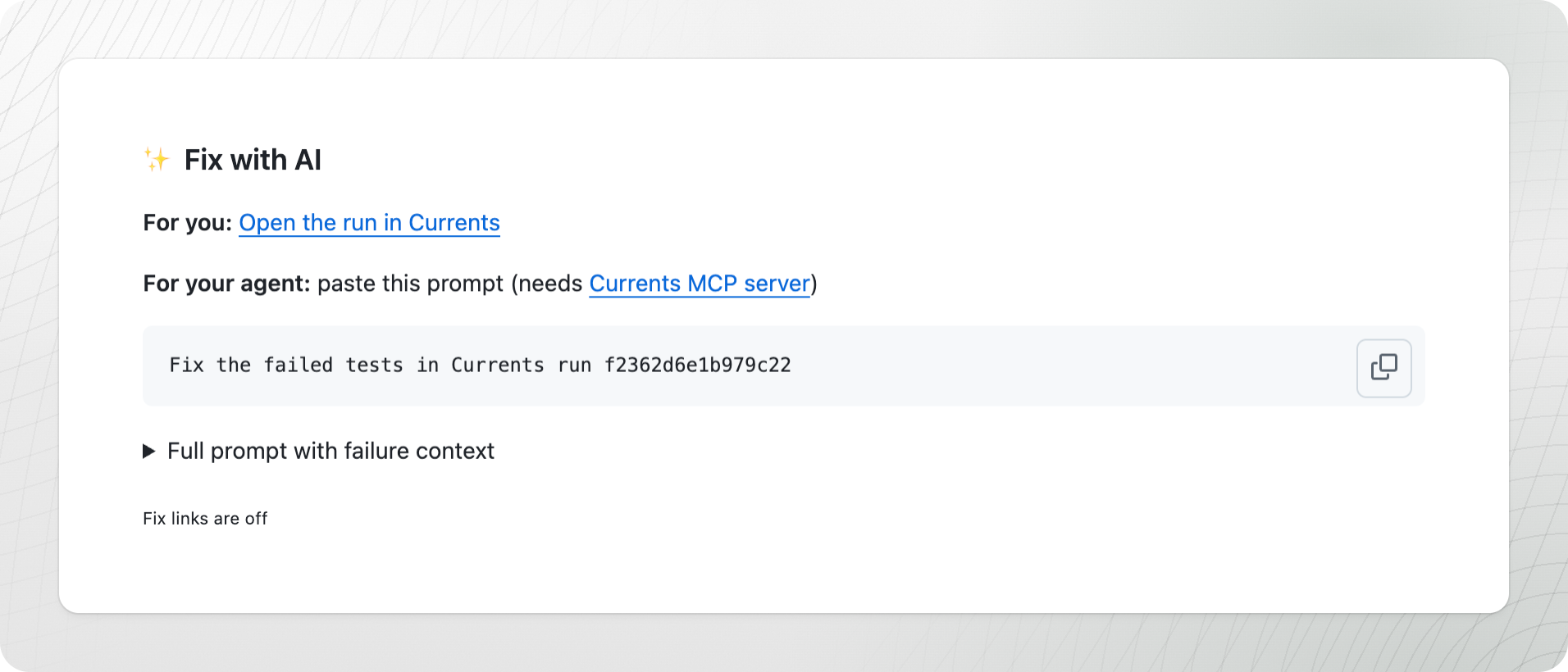
With [Fix links](#fix-links) off, the section says "Fix links are off". It links to the run in Currents instead, and the prompt names the run ID, for an agent connected to the [Currents MCP server](/ai/connect.md).

<figure><img src="https://3745692499-files.gitbook.io/~/files/v0/b/gitbook-x-prod.appspot.com/o/spaces%2FqmFDEiUa9mr11LUlxDnt%2Fuploads%2Fgit-blob-46d5e80a3a9377da9f0dfa5b006710445caf8005%2Fgithub-app-fix-links-off.png?alt=media" alt="Fix with AI section with Fix links off: a link to the run in Currents, a prompt that names the run ID and needs the Currents MCP server, and the line Fix links are off"><figcaption><p>Fix with AI with Fix links off</p></figcaption></figure>

See [Fix failing CI tests](/ai/agentic-testing/fix-failing-tests.md) for what the agent gets and how to use it.

### Which Runs Get a Comment

| Option                                        | Gets a comment                  |
| --------------------------------------------- | ------------------------------- |
| **Always post** (default)                     | Every run                       |
| **Only when there are failures**              | Runs with failed tests          |
| **Only when there are failed or flaky tests** | Runs with failed or flaky tests |

A run that the option leaves out can still update an earlier run's comment. For example, with **Only when there are failures**, a passing run after a failed one updates the failed run's comment to show the pass. This happens with [Existing Comment](#existing-comment) set to **Update it**, the default.

### Existing Comment

**Existing Comment** sets what a run does when an earlier run of the same project and framework already commented on the pull request, after a re-run or a new commit:

* **Update it** (default): the newer run edits the comment. The pull request keeps one comment per project and framework, and it shows the run that started last. An earlier run that finishes later does not overwrite it.
* **Post another:** each run posts its own comment and leaves the earlier ones in place. A run that **Which Runs Get a Comment** leaves out still posts a comment if the latest comment is for a run the option includes. That way the pull request's newest comment shows the current result. For example, with **Only when there are failures**, a passing run right after a failed one posts a comment.

## Inline comments on spec files

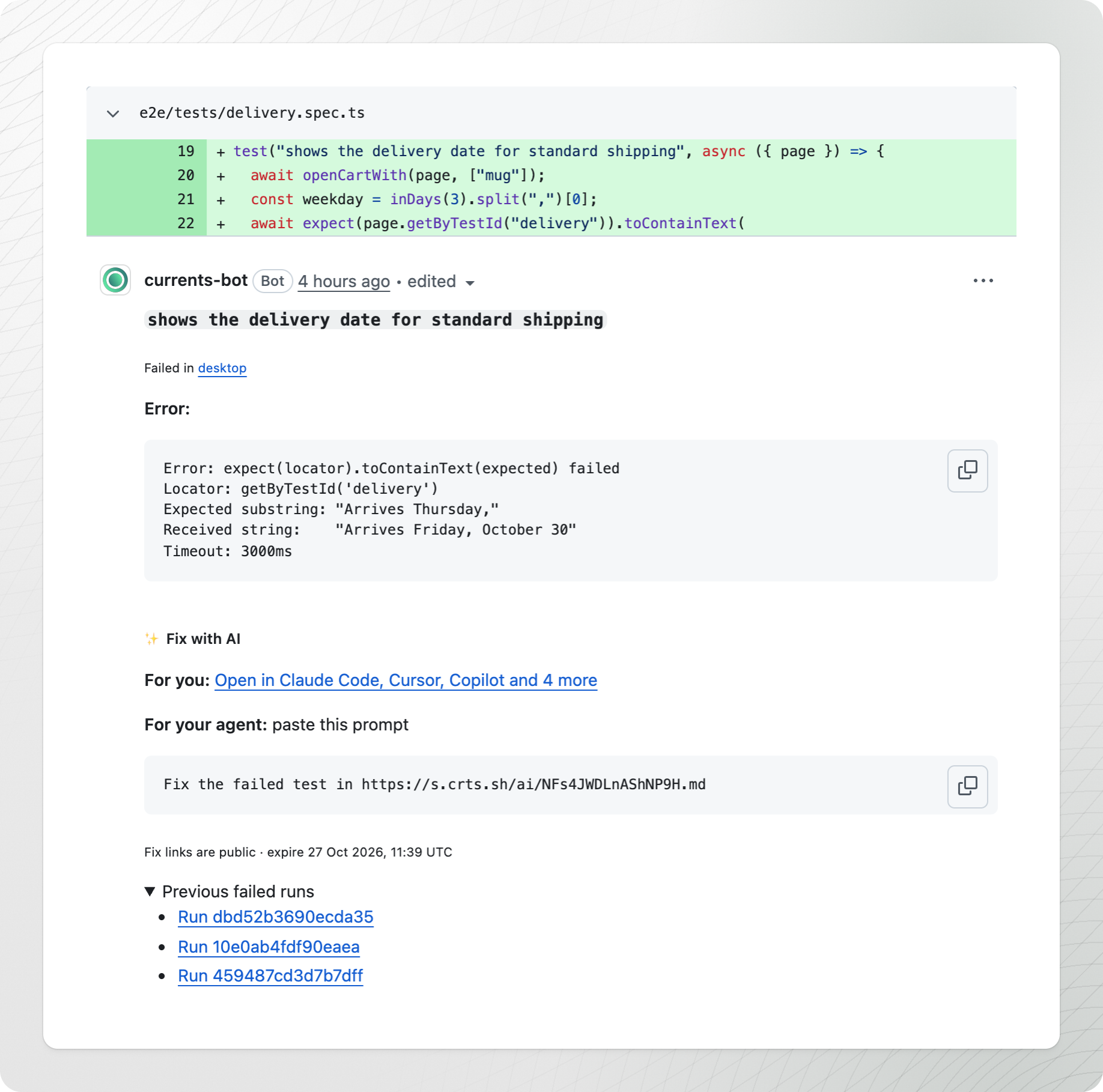
With **Post Error Details on Spec Files** on (off by default), Currents also adds [review comments](https://docs.github.com/en/pull-requests/collaborating-with-pull-requests/reviewing-changes-in-pull-requests/commenting-on-a-pull-request#adding-line-comments-to-a-pull-request) on the failing lines of the spec files that the pull request changes. The author sees each failure on the code it belongs to, in the **Files changed** tab.

<figure><img src="https://3745692499-files.gitbook.io/~/files/v0/b/gitbook-x-prod.appspot.com/o/spaces%2FqmFDEiUa9mr11LUlxDnt%2Fuploads%2Fgit-blob-6aa1b774e569257d950431b7e18d1abed14f1b07%2Fgithub-app-inline-comment.png?alt=media" alt="Currents review comment on a changed line of a spec file: the test failed in mobile, desktop and tablet, with one error for mobile and tablet and another for desktop, and a Fix with AI section"><figcaption><p>An inline comment on the failing line, with a different error in two groups</p></figcaption></figure>

* A failed test gets a comment when, in at least one group, its error points to a line of the spec file inside the diff. The comment shows the groups the test failed in and their error summaries, one for each distinct error.
* When a test failed on different lines in different groups, the comment goes on the line of the group the comment lists first, if that line is in the diff. Otherwise it goes on the topmost of the other groups' lines in the diff. For example, a test fails on line 12 in `chromium`, which the comment lists first, and on line 30 in `firefox`. Line 12 is outside the diff and line 30 is inside it, so the comment goes on line 30.
* The spec's other failed tests get no inline comment. They appear in the run comment, which lists up to 10 failed tests.
* Each comment has a Fix with AI section, with a link for you and a prompt for your agent. With [Fix links](#fix-links) on, the link is a Fix link for the comment's test. It stays the same while later groups fail the same way. With Fix links off, the link opens the test or the run in Currents.

Currents comments on:

* Up to 10 spec files that the pull request changes, those with the most failures first
* The first 5 tests that failed in each file

When a file has failed tests without an inline comment, one of its inline comments says "And N more failed tests not listed here" and links to the run.

Currents writes the comments as the run's groups finish. A later run of the same project on the pull request updates the same comments:

* The comment lists the earlier failed runs under **Previous failed runs**, up to 5.
* When the error moves to another line, the comment moves with it.
* When the later run passes the test, or its error is no longer on a line in the diff, Currents deletes the test's comment once that run is over.

<figure><img src="https://3745692499-files.gitbook.io/~/files/v0/b/gitbook-x-prod.appspot.com/o/spaces%2FqmFDEiUa9mr11LUlxDnt%2Fuploads%2Fgit-blob-42fb38dd5af376391159eab4cd707a256169f303%2Fgithub-app-previous-failed-runs.png?alt=media" alt="Currents review comment for a test that failed again in later runs, with Previous failed runs expanded to list three earlier runs"><figcaption><p>An inline comment updated by later runs, with its earlier failed runs</p></figcaption></figure>

Inline comments are review comments. When the branch's rules require conversations to be resolved before merging, someone has to resolve these threads too; Currents does not resolve them.

## Fix links

With **Add Fix Links to Comments** on (default), the comments on a failed run include [Fix links](/ai/reference/share-links.md). The run comment links to the failure context of the run and of each failed and flaky test, and to their traces, screenshots and videos. Each inline comment links to the failure context of its test.

Anyone with a link, including a coding agent, opens it without signing in. In a public repository, anyone who can see the pull request can open the links. Turn the setting off there, or see [What a link exposes](/ai/reference/share-links.md#what-a-link-exposes). The comments themselves are public there too, including each failed test's error summary, whatever this setting says.

**Fix Link Expiry** sets how long new links, and the files they open, stay readable: 1, 3 or 7 days. The default is 1 day. Changing the expiry or turning the setting off does not change links already posted; they work until they expire.

With the setting off, the comments link to the run and the tests in Currents, which needs a sign-in.

An organization admin can turn off **Public share links** in the organization's AI settings. Comments in every project then get no new Fix links, whatever this setting says, and links already posted work until they expire. See [Turn off share links](/ai/reference/share-links.md#turn-off-share-links).

## Troubleshooting

### Nothing appears on the pull request

Currents sets the commit status on the run's commit, and posts the comments on the pull request whose head commit is the run's commit. When the run's commit is not that head commit, the status lands on a commit whose checks the pull request does not show, and no comment is posted.

Check that:

* The run has commit information, from the `.git` directory in the CI environment or from the `COMMIT_INFO_*` environment variables. See [Overriding commit info](/dashboard/runs/commit-information.md#overriding-commit-info).
* The run's commit is the pull request's head commit, in the repository connected to the project. A commit pushed to the pull request while the run is going becomes the new head, and Currents stops updating the comment. For pull request runs, see [GitHub Actions and Pull Requests](/dashboard/runs/commit-information.md#github-actions-and-pull-requests) and [Merge Commits in Pull Request Runs](/dashboard/runs/commit-information.md#merge-commits-in-pull-request-runs).
* **Which Runs Get a Comment** includes the run. With **Only when there are failures**, for example, a passing run posts nothing when no earlier run on the pull request failed. See [Which Runs Get a Comment](#which-runs-get-a-comment).

If the commit is right and nothing appears, contact support through the in-app chat with the run, its commit SHA and the head commit SHA of the pull request.

### The comment has no Fix link

The comment shows "Fix links are off" when **Add Fix Links to Comments** is off, or when **Public share links** is off for the organization. Turn on the project setting under **Fix Links**, or ask an organization admin to turn on **Public share links**.

When the section has no Fix link and does not say that, Currents adds the link the next time it updates the comment. If it keeps happening, contact support with the run.

The run comment gets no Fix with AI section while its run is going, when the run has no failed tests, or when its only failures are interrupted tests, which leave nothing for an agent to fix.

### No inline comment on a failed test

Check that:

* **Post Error Details on Spec Files** is on.
* The pull request changes the spec file. Failed tests in other spec files appear in the run comment, up to 10, and in Currents.
* The test's error points to a line of the spec file inside the diff, in at least one of the groups it failed in. An error in another file, such as a page object, does not count.
* The spec file is among the 10 changed spec files with the most failures.
* The test is among the first 5 that failed in its file. One of the file's inline comments says how many more failed and links to the run.
* In a monorepo, the spec path matches the end of only one changed file. A spec path such as `tests/login.spec.ts` that matches the same file in two packages gets no inline comment.
* On a pull request with more than 1,000 changed files, the Playwright config is at the repository root. Spec files past the first 1,000 that GitHub lists get no inline comment.


---

# Agent Instructions
This documentation is published with GitBook. GitBook is the documentation platform designed so that both humans and AI agents can read, navigate, and reason over technical content effectively. Learn more at gitbook.com.

## Querying This Documentation
If you need additional information that is not directly available in this page, you can query the documentation by asking a question.

Perform an HTTP GET request on the following URL with the `ask` and `goal` query parameters:

```
GET https://docs.currents.dev/resources/integrations/github/github-app.md?ask=<question>&goal=<user_goal>
```

`ask` is the immediate question: it should be specific, self-contained, and written in natural language.
`goal` is what the user is ultimately trying to achieve, the reason they need the answer. Sharing it helps GitBook give you a better, more relevant answer. A goal is most helpful when it describes the outcome the user wants rather than restating the question. For example, with `ask=how do I create an API token`, a goal like `automate deployments from our CI pipeline` lets GitBook tailor the answer to that use case.

The response will contain a direct answer to the question and relevant excerpts and sources from the documentation.

Use this mechanism when the answer is not explicitly present in the current page, you need clarification or additional context, or you want to retrieve related documentation sections.