> For the complete documentation index, see [llms.txt](https://docs.currents.dev/llms.txt). Markdown versions of documentation pages are available by appending `.md` to page URLs; this page is available as [Markdown](https://docs.currents.dev/dashboard/projects/project-overview.md).

# Project Overview

Project health at a glance - run and test trends, latest runs and pull requests, and the tests and errors to fix first

The **Overview** page shows whether a project is healthy, whether it is getting better or worse, and which tests and errors to fix first. It is the first item in the project sidebar and the page that opens when a project is selected. The project name in the breadcrumb also links to it.

The list of runs is the **Runs** item, below **Overview** in the sidebar. Existing links to a project's Runs page still open the Runs page.

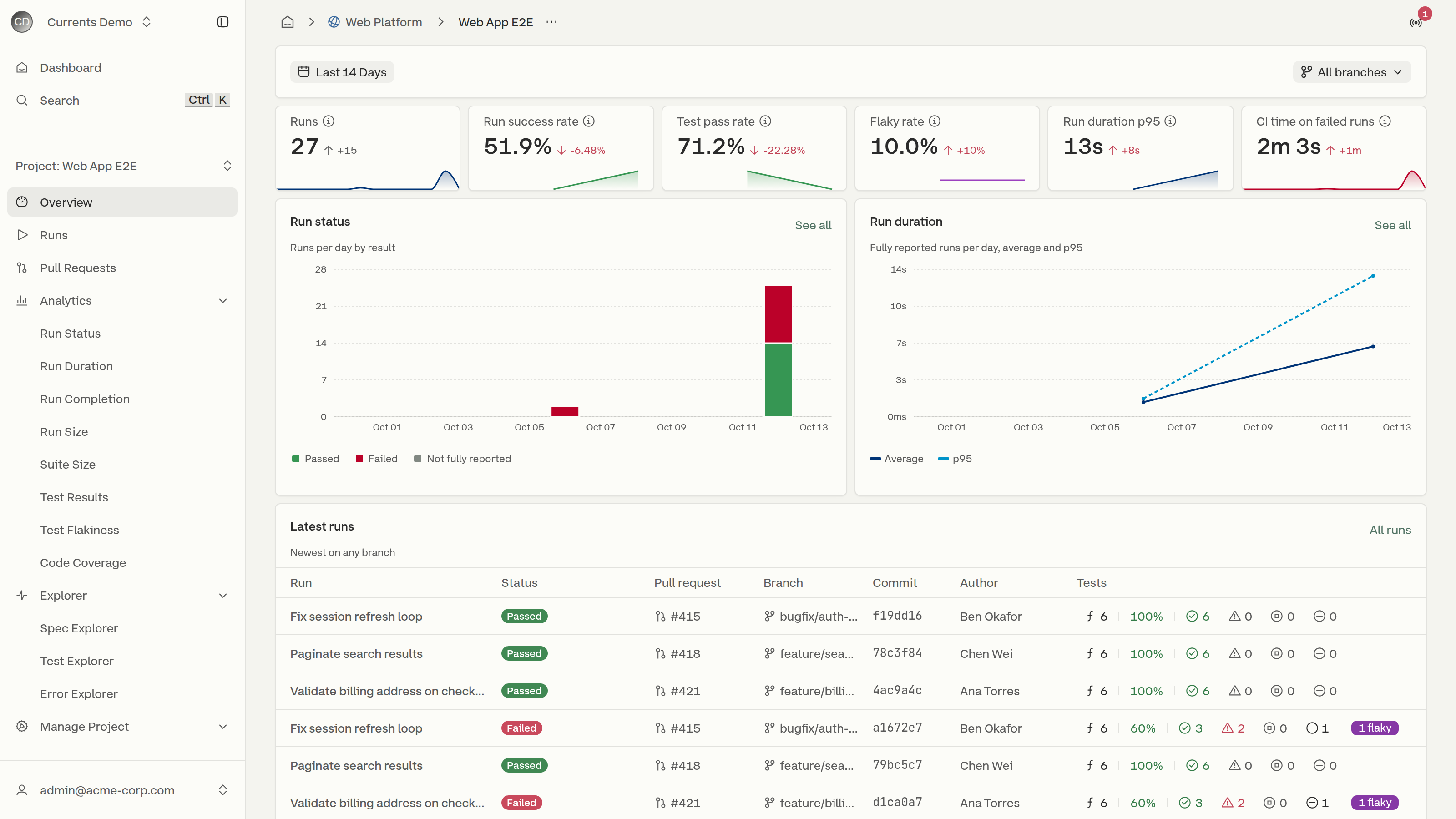
<figure><img src="https://3745692499-files.gitbook.io/~/files/v0/b/gitbook-x-prod.appspot.com/o/spaces%2FqmFDEiUa9mr11LUlxDnt%2Fuploads%2Fgit-blob-adf1a025354e9a9b4a695b8f6a47a817375fa954%2Foverview-page.png?alt=media" alt="The Overview page of a project with the date range and branch pickers, six metric tiles, the Run status and Run duration charts, and the Latest runs table"><figcaption><p>The Overview page of a project</p></figcaption></figure>

From top to bottom, the page contains:

* the date range and branch pickers
* six metric tiles, each compared with the previous period
* the **Run status** and **Run duration** charts
* the **Latest runs** and **Recent pull requests** tables
* the **Most flaky**, **Most failing** and **Slowest** test lists
* the **Broken tests** and **Top errors** lists

Sections below the first screen load as you scroll towards them. Each section loads on its own: a section that fails to load shows **Couldn't load** with a **Try again** button, and the rest of the page is unaffected.

## A project with no runs

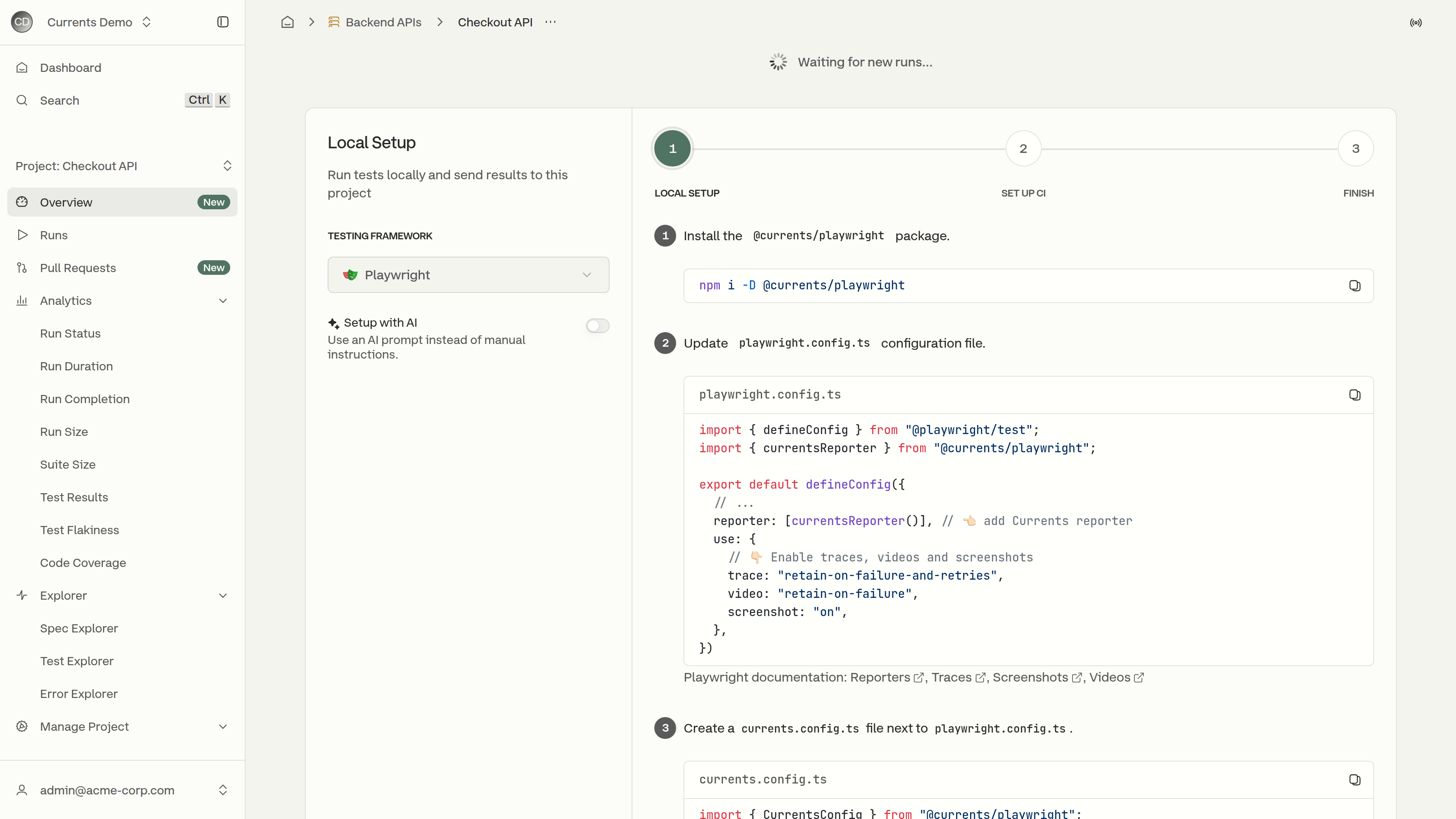
Until a project records its first run, the Overview shows the same screen as the Runs page: a **Waiting for new runs...** indicator above the setup instructions for the project. When the first run arrives, the page switches to the sections below without a reload.

<figure><img src="https://3745692499-files.gitbook.io/~/files/v0/b/gitbook-x-prod.appspot.com/o/spaces%2FqmFDEiUa9mr11LUlxDnt%2Fuploads%2Fgit-blob-ee9868e188f124cccb0c52834566214fadb07b0b%2Foverview-no-runs.png?alt=media" alt="The Overview of a project before its first run: a Waiting for new runs indicator above the Local Setup instructions for Playwright, with Overview selected in the sidebar"><figcaption><p>The Overview of a project with no runs</p></figcaption></figure>

A project that has runs, but none in the selected period, shows every section with its empty state.

## Filters

### Date range

Sets the period for every section except **Latest runs**, which always shows the newest runs. **Broken tests** covers at most the last 14 days of the period. The default is **Last 14 Days**. Pick a **Quick Select** option or a custom range of whole days, up to one year back, in the browser's time zone.

### Branch

Limits every section to the runs of one branch. The default is **All branches**. The menu lists the default branch and the 10 most recently active branches, and the search box finds any other branch.

Both filters are saved in the page URL, and the **See all**, **All runs** and **All pull requests** links keep them.

## Metric tiles

Each tile shows the value for the selected period, a sparkline with one point per day, and the change from the previous period. The previous period has the same number of days and ends on the day before the selected period starts. Hovering the change shows the previous value, and hovering the info icon next to a tile's name shows its definition.

<figure><img src="https://3745692499-files.gitbook.io/~/files/v0/b/gitbook-x-prod.appspot.com/o/spaces%2FqmFDEiUa9mr11LUlxDnt%2Fuploads%2Fgit-blob-08f593619efde1926be83d3e529187755257a1cd%2Foverview-kpi-tooltip.png?alt=media" alt="The six metric tiles, with the definition of Run success rate shown in a tooltip"><figcaption><p>The metric tiles and the definition of Run success rate</p></figcaption></figure>

| Tile                       | Value                                                                                                                                               | Better when |
| -------------------------- | --------------------------------------------------------------------------------------------------------------------------------------------------- | ----------- |
| **Runs**                   | Number of runs created in the period.                                                                                                               | -           |
| **Run success rate**       | Fully reported runs with at least one test and no failed or skipped tests, out of all runs in the period.                                           | Higher      |
| **Test pass rate**         | Passed tests out of all tests that were not ignored, summed over the runs in the period.                                                            | Higher      |
| **Flaky rate**             | Tests that failed and then passed on a retry, out of all tests in the period.                                                                       | Lower       |
| **Run duration p95**       | 95th percentile of the duration of fully reported runs. The average hides the slow runs that people wait on, so the tile shows the 95th percentile. | Lower       |
| **CI time on failed runs** | Summed duration of fully reported runs that finished with failed or skipped tests. Cancelled and timed-out runs are left out.                       | Lower       |

A fully reported run is a run that was not cancelled, did not time out, and received results from all of its spec files.

The change is green when the metric improved and red when it got worse. The change of **Runs** is always grey, because more or fewer runs is neither better nor worse. Rates change in percentage points: a **Run success rate** that goes from 50% to 52% shows `+2%`.

**Runs**, **Run success rate**, **Test pass rate** and the **Run status** chart follow the organization's [Project Preview](/dashboard/administration/manage-projects.md#project-preview) setting. Run states that are turned off there, for example cancelled runs, are left out of these numbers.

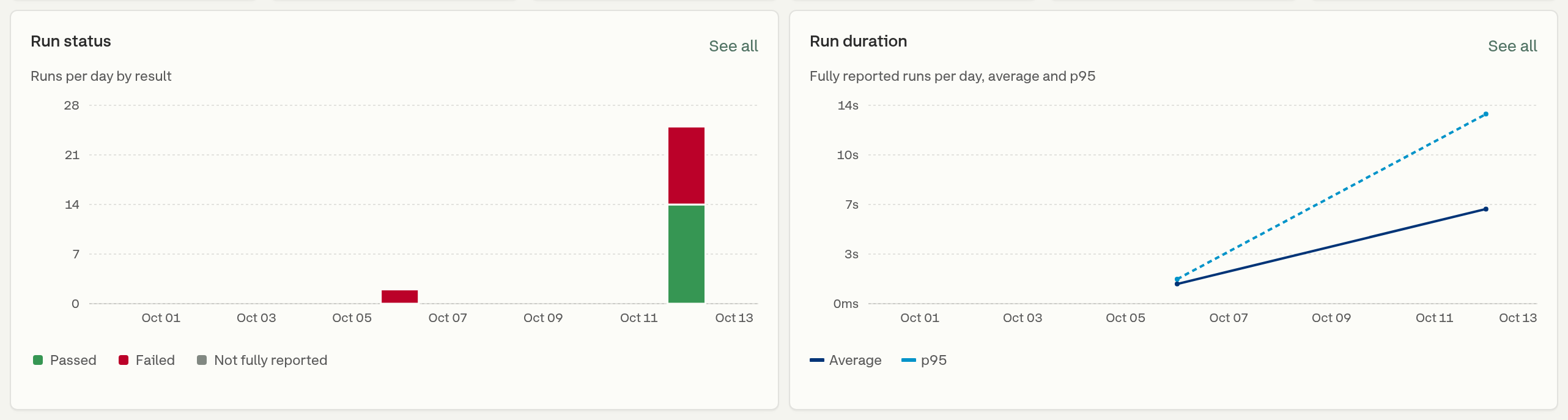
## Run status and Run duration charts

<figure><img src="https://3745692499-files.gitbook.io/~/files/v0/b/gitbook-x-prod.appspot.com/o/spaces%2FqmFDEiUa9mr11LUlxDnt%2Fuploads%2Fgit-blob-b865aba13fc8a1c8a4cd58a84ae780b8672c57b3%2Foverview-charts.png?alt=media" alt="The Run status chart with stacked daily bars of passed and failed runs, and the Run duration chart with average and p95 lines"><figcaption><p>The Run status and Run duration charts</p></figcaption></figure>

**Run status** shows the number of runs per day, stacked by result:

* **Passed** - fully reported runs with at least one test and no failed or skipped tests
* **Failed** - fully reported runs with at least one failed or skipped test
* **Not fully reported** - runs that were cancelled, timed out, or are still waiting for spec files

**Run duration** shows the **Average** and the **p95** duration of fully reported runs for each day. Days without fully reported runs have no point.

**See all** opens [Run Status](/dashboard/analytics/run-status.md) or [Run Duration](/dashboard/analytics/run-duration.md) in Analytics, with the same period and branch. The Analytics Run Status chart counts only fully reported runs: it has no **Not fully reported** bar, and its pass rate is passed runs out of fully reported runs. Analytics charts do not follow the Project Preview setting, so their totals can differ from the Overview.

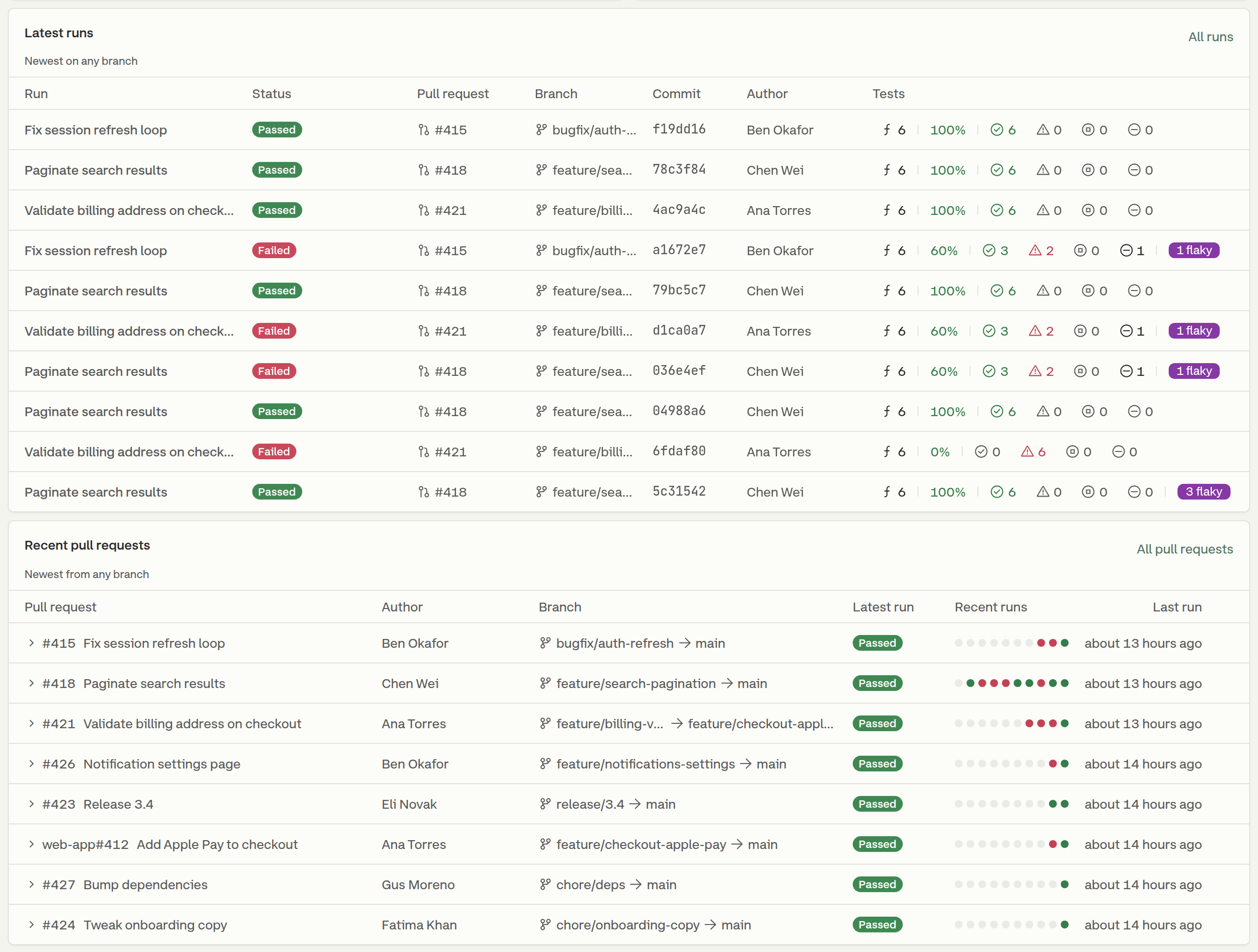
## Latest runs and Recent pull requests

<figure><img src="https://3745692499-files.gitbook.io/~/files/v0/b/gitbook-x-prod.appspot.com/o/spaces%2FqmFDEiUa9mr11LUlxDnt%2Fuploads%2Fgit-blob-f3fad8173353ff6020995d4f132021dca2daf282%2Foverview-runs-and-prs.png?alt=media" alt="The Latest runs table with ten runs and the Recent pull requests table with eight pull requests"><figcaption><p>The Latest runs and Recent pull requests tables</p></figcaption></figure>

**Latest runs** lists the 10 newest runs of the project, or of the selected branch. The list does not depend on the date range, so it always shows the most recent activity. Clicking a row opens the run, and **All runs** opens the [Runs](/dashboard/runs.md) page.

**Recent pull requests** lists the 8 pull requests with the most recent runs in the selected period. When a branch is selected, the list shows the pull requests whose source branch is that branch. The columns are the same as on the [Pull Requests](/dashboard/runs/pull-requests.md) page, without **Runs** and **First run**. Clicking a row expands it to the pull request's runs, and **All pull requests** opens the Pull Requests page.

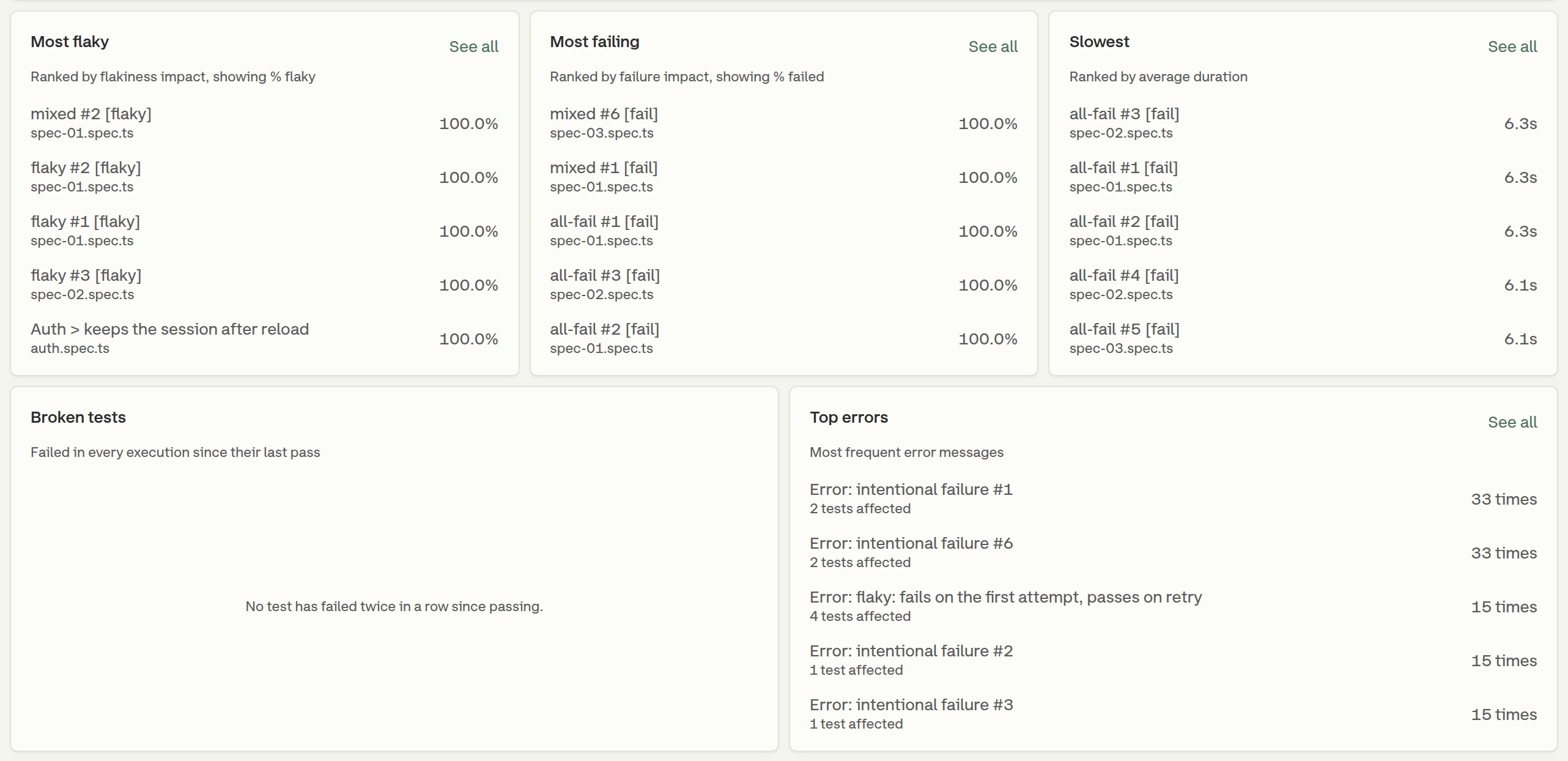
## Most flaky, Most failing and Slowest tests

<figure><img src="https://3745692499-files.gitbook.io/~/files/v0/b/gitbook-x-prod.appspot.com/o/spaces%2FqmFDEiUa9mr11LUlxDnt%2Fuploads%2Fgit-blob-320f0100a31d0e9af3caec97937e08e136e59856%2Foverview-tests-and-errors.png?alt=media" alt="The Most flaky, Most failing and Slowest test lists, followed by the Broken tests list and the Top errors list"><figcaption><p>The test lists, Broken tests and Top errors</p></figcaption></figure>

The three lists show up to 5 tests each, from the test results in the selected period. Each row shows the test title, its spec file and a value.

| List             | Ranked by                                                                                         | Value shown      |
| ---------------- | ------------------------------------------------------------------------------------------------- | ---------------- |
| **Most flaky**   | [Flakiness Impact](/dashboard/test-suite-performance-explorer/tests-explorer.md#flakiness-impact) | Flakiness rate   |
| **Most failing** | [Failure Impact](/dashboard/test-suite-performance-explorer/tests-explorer.md#failure-impact)     | Failure rate     |
| **Slowest**      | Average duration                                                                                  | Average duration |

Ranking by impact puts a test that runs often and fails sometimes above a test that ran once and failed. **Most flaky** only includes tests with at least one flaky result, and **Most failing** only includes tests with at least one failure.

Clicking a test opens its details in [Test Explorer](/dashboard/test-suite-performance-explorer/tests-explorer.md). **See all** opens Test Explorer sorted by the same metric.

## Broken tests

**Broken tests** lists tests that passed and have failed in every execution since. A test appears when, in the selected period and on one branch, its last passed result is followed by two or more failed results. Skipped and ignored results do not count either way.

Broken tests looks at 14 days at most. When the selected period is longer, the list covers its last 14 days, starting at midnight in the browser's time zone. The other sections keep the full period.

Each row shows the test title, the branch, the date of the first failure after the last pass, and the number of failures since that pass. The list shows up to 10 tests, with the most failures first. Clicking a test opens its details in Test Explorer.

## Top errors

**Top errors** lists the 5 error messages that occurred most often in the selected period. Each row shows the error message, the number of tests affected, and the number of times the error occurred. Every attempt counts, so an error on a test that failed and then passed on a retry is included.

Clicking an error or **See all** opens [Error Explorer](/dashboard/test-suite-performance-explorer/errors-explorer.md) with the same period and branch.

## Related

* [Run Status](/dashboard/analytics/run-status.md) - Run outcome distribution
* [Run Duration](/dashboard/analytics/run-duration.md) - Run duration over time
* [Test Explorer](/dashboard/test-suite-performance-explorer/tests-explorer.md) - Test metrics and impact scores
* [Flaky Tests](/dashboard/tests/flaky-tests.md) - What makes a test flaky
* [Manage Projects](/dashboard/administration/manage-projects.md) - Which runs count towards the project preview numbers


---

# Agent Instructions
This documentation is published with GitBook. GitBook is the documentation platform designed so that both humans and AI agents can read, navigate, and reason over technical content effectively. Learn more at gitbook.com.

## Querying This Documentation
If you need additional information that is not directly available in this page, you can query the documentation by asking a question.

Perform an HTTP GET request on the following URL with the `ask` and `goal` query parameters:

```
GET https://docs.currents.dev/dashboard/projects/project-overview.md?ask=<question>&goal=<user_goal>
```

`ask` is the immediate question: it should be specific, self-contained, and written in natural language.
`goal` is what the user is ultimately trying to achieve, the reason they need the answer. Sharing it helps GitBook give you a better, more relevant answer. A goal is most helpful when it describes the outcome the user wants rather than restating the question. For example, with `ask=how do I create an API token`, a goal like `automate deployments from our CI pipeline` lets GitBook tailor the answer to that use case.

The response will contain a direct answer to the question and relevant excerpts and sources from the documentation.

Use this mechanism when the answer is not explicitly present in the current page, you need clarification or additional context, or you want to retrieve related documentation sections.