> For the complete documentation index, see [llms.txt](https://docs.currents.dev/llms.txt). Markdown versions of documentation pages are available by appending `.md` to page URLs; this page is available as [Markdown](https://docs.currents.dev/dashboard/administration/manage-projects.md).

# Manage Projects

Organize projects into folders, label them, control their ordering and appearance, and choose which run states count towards the project preview metrics

**Manage Projects** is the editor that controls how projects appear across the dashboard - on the Projects page, in the sidebar and in the project switcher. It also sets which runs count towards the project preview cards.

The folders, ordering, appearance and labels it controls make up the organization's project **layout**. The layout is organization-wide: once saved, every member sees the same one.

Nothing in the editor is live until it is saved, and an unsaved draft does not survive a page reload.

{% hint style="info" %}
Only **Admins** can make changes here. Other roles that open the Manage Projects page see the regular, read-only Projects list. See [Roles and Permissions](/dashboard/administration/manage-team.md#roles-and-permissions).
{% endhint %}

## Opening Manage Projects

There are two ways to open it:

* Open the organization menu - the organization name at the top of the sidebar - and click **Manage Projects**.
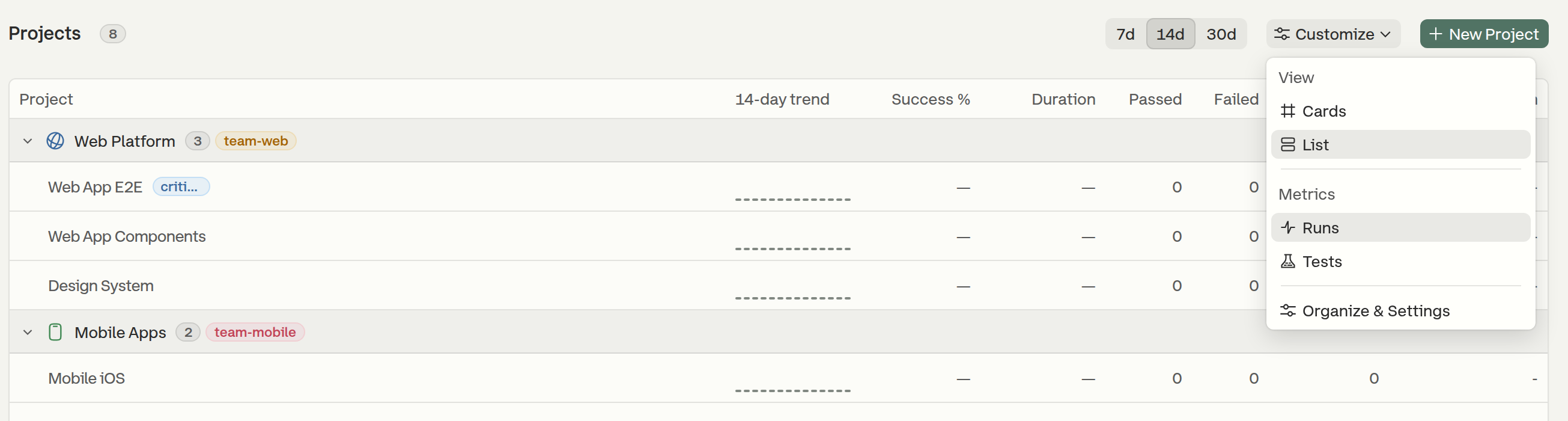
* On the Projects page, click **Customize → Organize & Settings**.

<figure><img src="https://3745692499-files.gitbook.io/~/files/v0/b/gitbook-x-prod.appspot.com/o/spaces%2FqmFDEiUa9mr11LUlxDnt%2Fuploads%2Fgit-blob-364c7aeb3726cb4c8f2ae3a800f79d9041ed98c1%2Fprojects-customize-menu.png?alt=media" alt=""><figcaption><p>Opening the editor from the Projects page</p></figcaption></figure>

The editor is also labelled **Organize & Settings** in the Customize menu, and [the project settings page](/dashboard/projects/project-settings.md) links to it as **Organize Projects**. It is split into three tabs:

<table><thead><tr><th width="200">Tab</th><th>What it controls</th></tr></thead><tbody><tr><td><strong>Project Structure</strong></td><td>Folders, ordering, moving projects between them, per-project and per-folder appearance</td></tr><tr><td><strong>Project Labels</strong></td><td>The organization's labels — create, rename, re-color and delete</td></tr><tr><td><strong>Project Preview</strong></td><td>Which runs count towards the project preview cards</td></tr></tbody></table>

Every tab shows who last saved a change and when, or **Not yet published for your organization** if nothing has been saved yet. **Done**, in the page header beside **New Project**, leaves the editor and returns to the Projects page.

## Project Structure

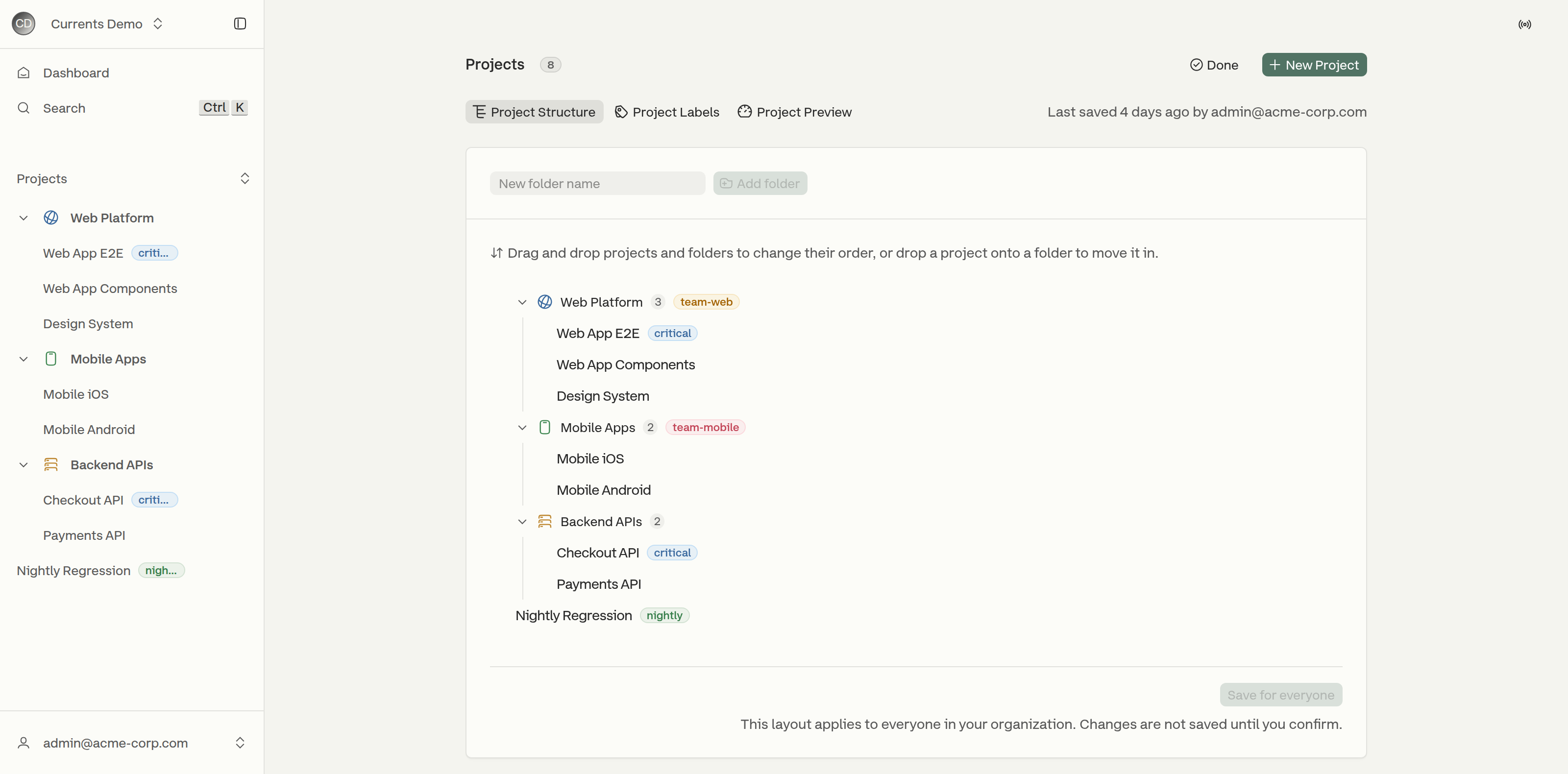
The **Project Structure** tab shows the organization's projects as a tree: folders with the projects they contain, alongside the projects that are not in any folder. In the editor, folders and ungrouped projects are ordered together, so an ungrouped project can sit above, between or below the folders. The Projects page presents the same layout differently - see [Where the Layout Shows Up](#where-the-layout-shows-up).

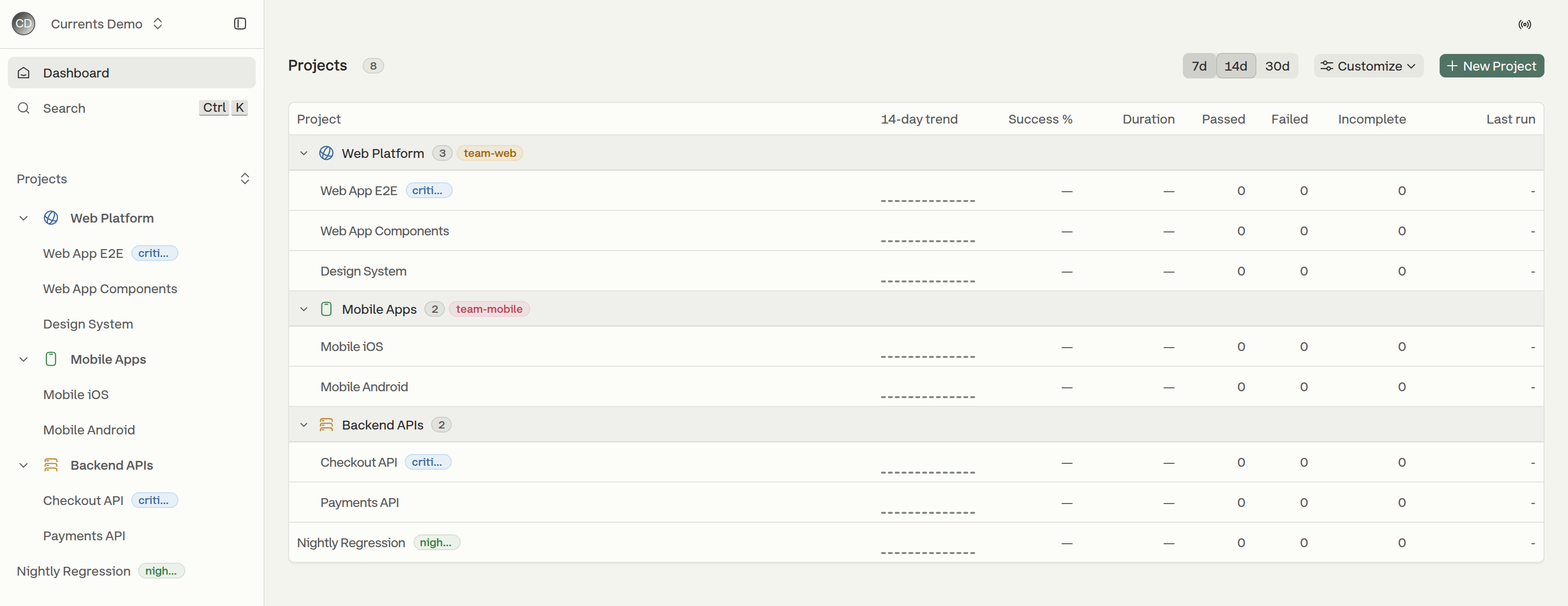
<figure><img src="https://3745692499-files.gitbook.io/~/files/v0/b/gitbook-x-prod.appspot.com/o/spaces%2FqmFDEiUa9mr11LUlxDnt%2Fuploads%2Fgit-blob-2a8a9864862b12db555a2ae09aa3ae50328a9a3c%2Fmanage-projects-structure.png?alt=media" alt=""><figcaption><p>The Project Structure tab, with the resulting folders mirrored in the sidebar</p></figcaption></figure>

### Creating a Folder

Type a name into the **New folder name** field above the tree and click **Add folder** (or press `Enter`). The folder is created at the top level with the default folder icon and no color; both can be set afterwards - see [Folder Actions](#folder-actions).

Folders are flat: a folder contains projects, not other folders.

### Ordering and Moving Projects

Hover a row to reveal its drag handle (the grip on the left). Dragging rearranges the layout:

* Drag a project or a folder up and down to change its order.
* Drop a project **onto a folder** to move it into that folder.
* Drag a project out of a folder and onto the top level to ungroup it.

### Folder Actions

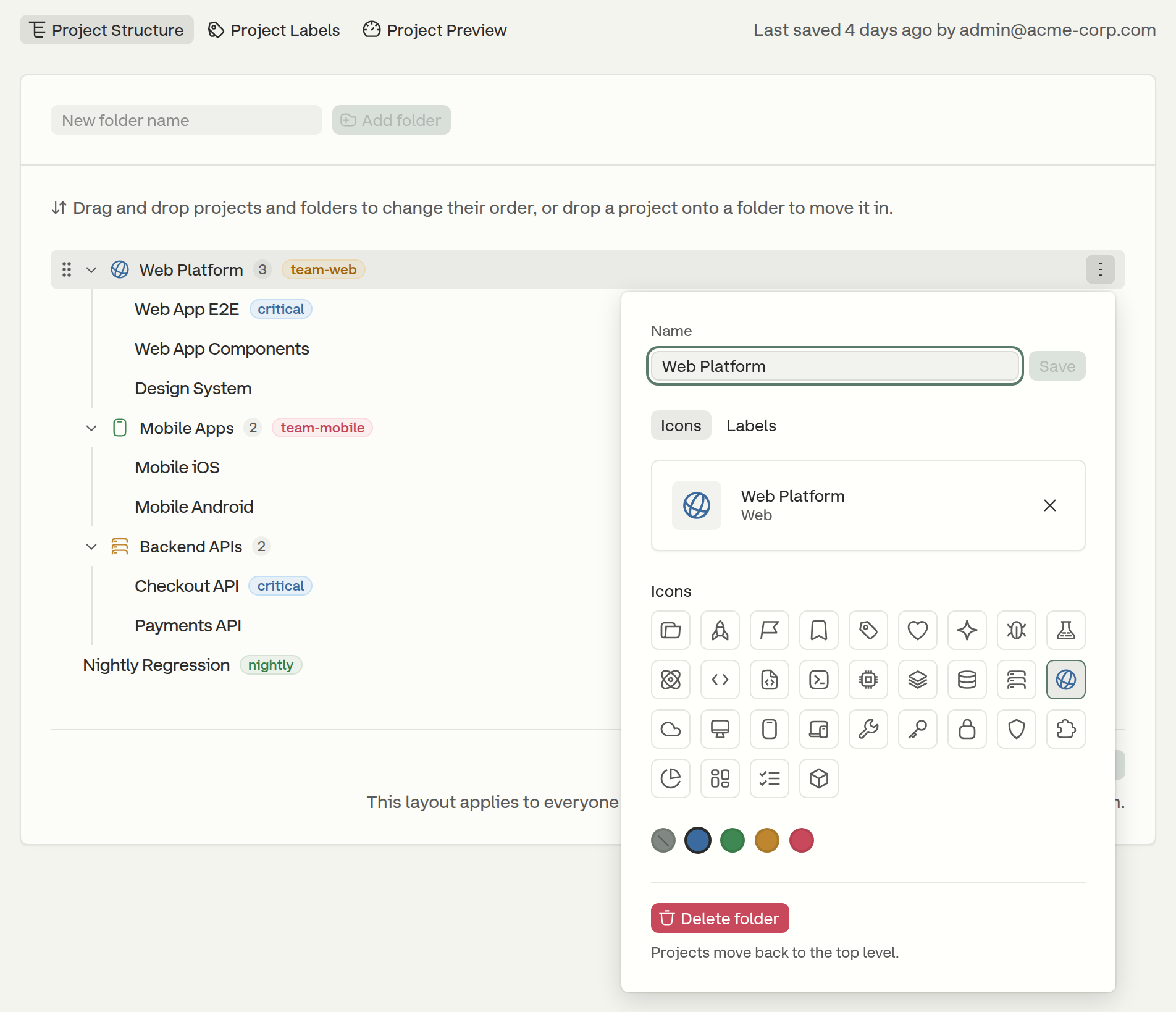
A folder header shows a count of the projects visible in it and a chevron to collapse or expand it. Its **⋮** menu, revealed on hover, offers:

* **Rename** the folder.
* Pick the folder's **icon** and color, on the **Icons** tab.
* Attach **labels** to the folder itself, on the **Labels** tab.
* **Delete folder** - the folder's projects are not deleted; they move back to the top level.

<figure><img src="https://3745692499-files.gitbook.io/~/files/v0/b/gitbook-x-prod.appspot.com/o/spaces%2FqmFDEiUa9mr11LUlxDnt%2Fuploads%2Fgit-blob-8e8796cd0b3a39b8969428dcc114b33ec8c545c1%2Fmanage-projects-folder-actions.png?alt=media" alt=""><figcaption><p>Renaming a folder and choosing its icon and color</p></figcaption></figure>

### Project Appearance and Labels

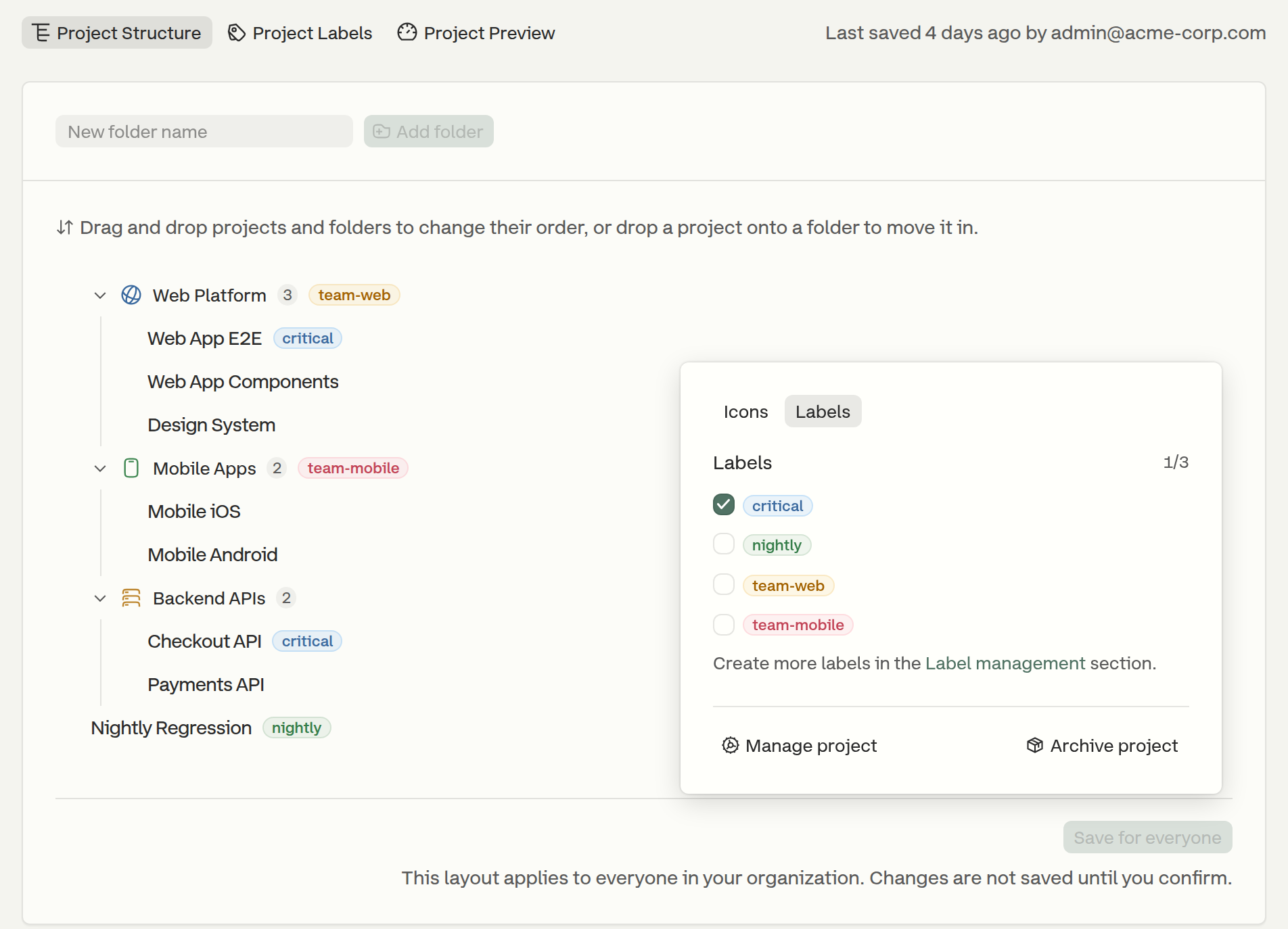
The **⋮** menu on a project row, also revealed on hover, offers:

* Pick an **icon** and an accent color, shown wherever the project appears - the sidebar, the project switcher and the project lists.
* Toggle the project's **labels**.
* **Manage project** - opens the project's settings page.
* **Archive project** - or **Unarchive project**, when it is archived.

<figure><img src="https://3745692499-files.gitbook.io/~/files/v0/b/gitbook-x-prod.appspot.com/o/spaces%2FqmFDEiUa9mr11LUlxDnt%2Fuploads%2Fgit-blob-d7175109b4882d9d0744529a774f58dc1a9d9039%2Fmanage-projects-project-labels.png?alt=media" alt=""><figcaption><p>Attaching labels to a project</p></figcaption></figure>

Each project and each folder can carry up to three labels.

{% hint style="info" %}
The same icon, accent color and labels can also be set per project from **Project Settings → Appearance**. Changes made there take effect immediately, rather than being held as a draft.
{% endhint %}

### Archived Projects

Archived projects are hidden by default. When the organization has any, a **Show archived** button appears above the tree, opposite **Add folder**, showing how many. Click it to bring them into the tree, where they can be re-ordered or placed into folders; each is marked with an **Archived** badge. See [Archive and Unarchive Projects](/dashboard/projects/archive-and-unarchive-projects.md).

### Placing a New Project Into a Folder

The **New Project** form has a **Directory** field for placing the project straight into an existing folder, so it does not have to be moved afterwards. Directory is this form's name for a folder. Like every other layout change, the placement applies to the whole organization. If someone else saves between opening the form and submitting it, the project is still created but stays at the top level, and a message says so.

Folders themselves can only be created, renamed, re-ordered and deleted here. To move an existing project, drag it in the tree as described above.

## Project Labels

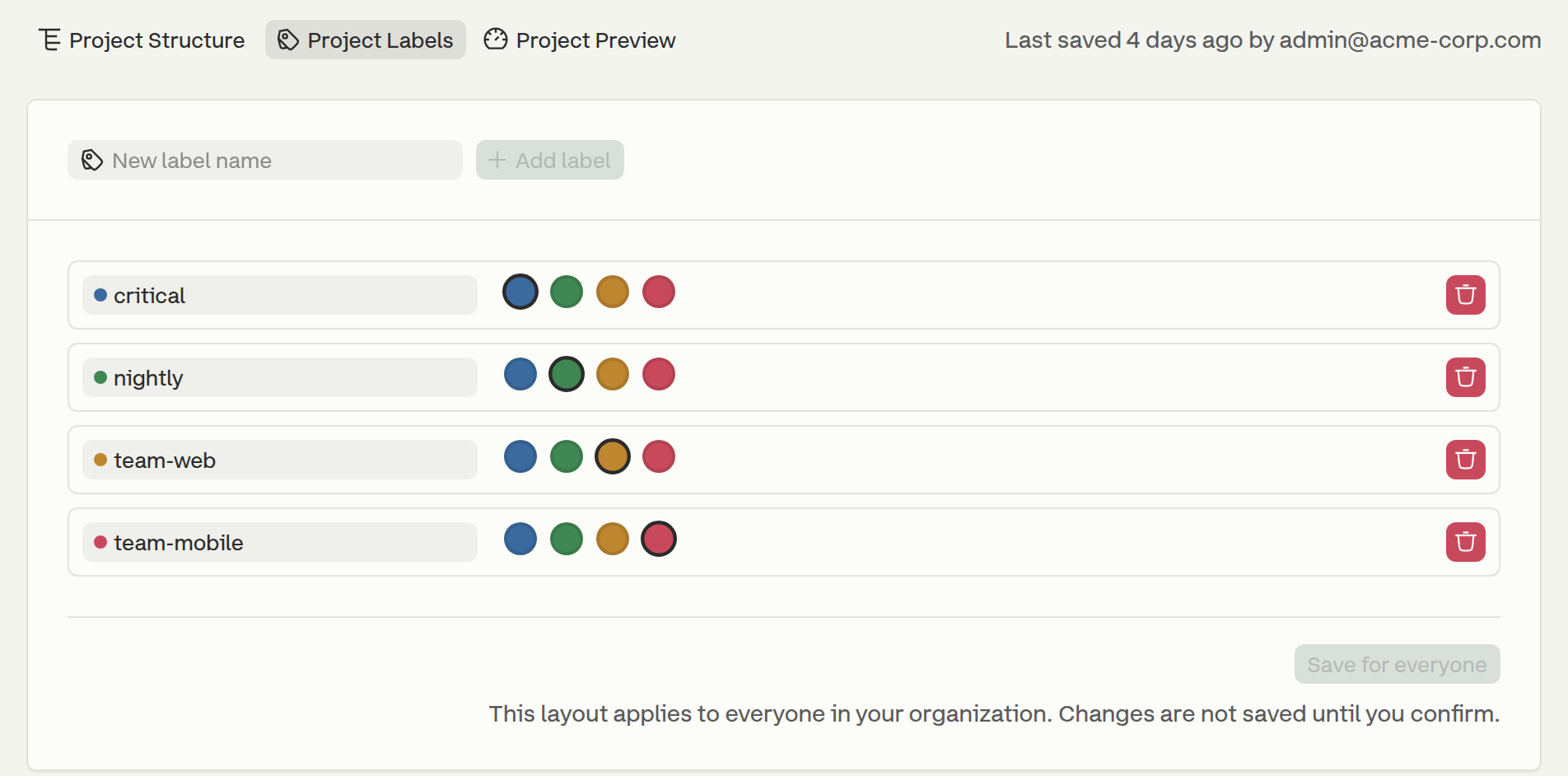
Labels such as `team-web`, `nightly` or `critical` are defined once for the organization on the **Project Labels** tab, then attached to projects and folders from the **Project Structure** tab.

* **Create** - type a name into **New label name** and click **Add label**. A distinct color is assigned automatically by cycling the palette. Names can be up to 32 characters.
* **Rename** - edit the label's name inline. `Enter` commits the change, `Esc` reverts it.
* **Re-color** - pick another color from the row's color picker.
* **Delete** - click the delete button at the end of the row. The label is removed from every project and folder that used it.

<figure><img src="https://3745692499-files.gitbook.io/~/files/v0/b/gitbook-x-prod.appspot.com/o/spaces%2FqmFDEiUa9mr11LUlxDnt%2Fuploads%2Fgit-blob-e6a7fe1996dbb4a0c7a93491a7c1c155ab3babc0%2Fmanage-projects-labels.png?alt=media" alt=""><figcaption><p>The organization's project labels</p></figcaption></figure>

## Project Preview

The Projects page shows a preview card per project with its run (or test) totals and success rate. The **Project Preview** tab decides which runs feed those numbers. It lists the three run states the dashboard treats as incomplete, and each one can be counted or left out:

<table><thead><tr><th width="180">State</th><th>Runs in this state</th></tr></thead><tbody><tr><td><strong>Cancelled</strong></td><td>Runs cancelled before they finished reporting</td></tr><tr><td><strong>Timed out</strong></td><td>Runs that hit the inactivity timeout</td></tr><tr><td><strong>In progress</strong></td><td>Runs still reporting — not all specs are in yet</td></tr></tbody></table>

The three states are mutually exclusive, in that order of precedence: a cancelled run counts as **Cancelled** even if it also timed out or never finished reporting, and a timed-out run counts as **Timed out** rather than **In progress**. **In progress** is decided purely by whether every spec has reported - a run that reported in full counts as complete whether its tests passed or failed.

All three states are counted by default. Turning one off excludes those runs entirely from the preview's totals and success rate - useful when, for example, cancelled runs are dragging the success rate down.

<figure><img src="https://3745692499-files.gitbook.io/~/files/v0/b/gitbook-x-prod.appspot.com/o/spaces%2FqmFDEiUa9mr11LUlxDnt%2Fuploads%2Fgit-blob-b05b05d44ae31d466e07a30cd68cae1494a4c76b%2Fmanage-projects-preview.png?alt=media" alt=""><figcaption><p>Choosing which runs count towards the project preview cards</p></figcaption></figure>

These settings are organization-wide and are saved independently of the layout.

## Saving Changes

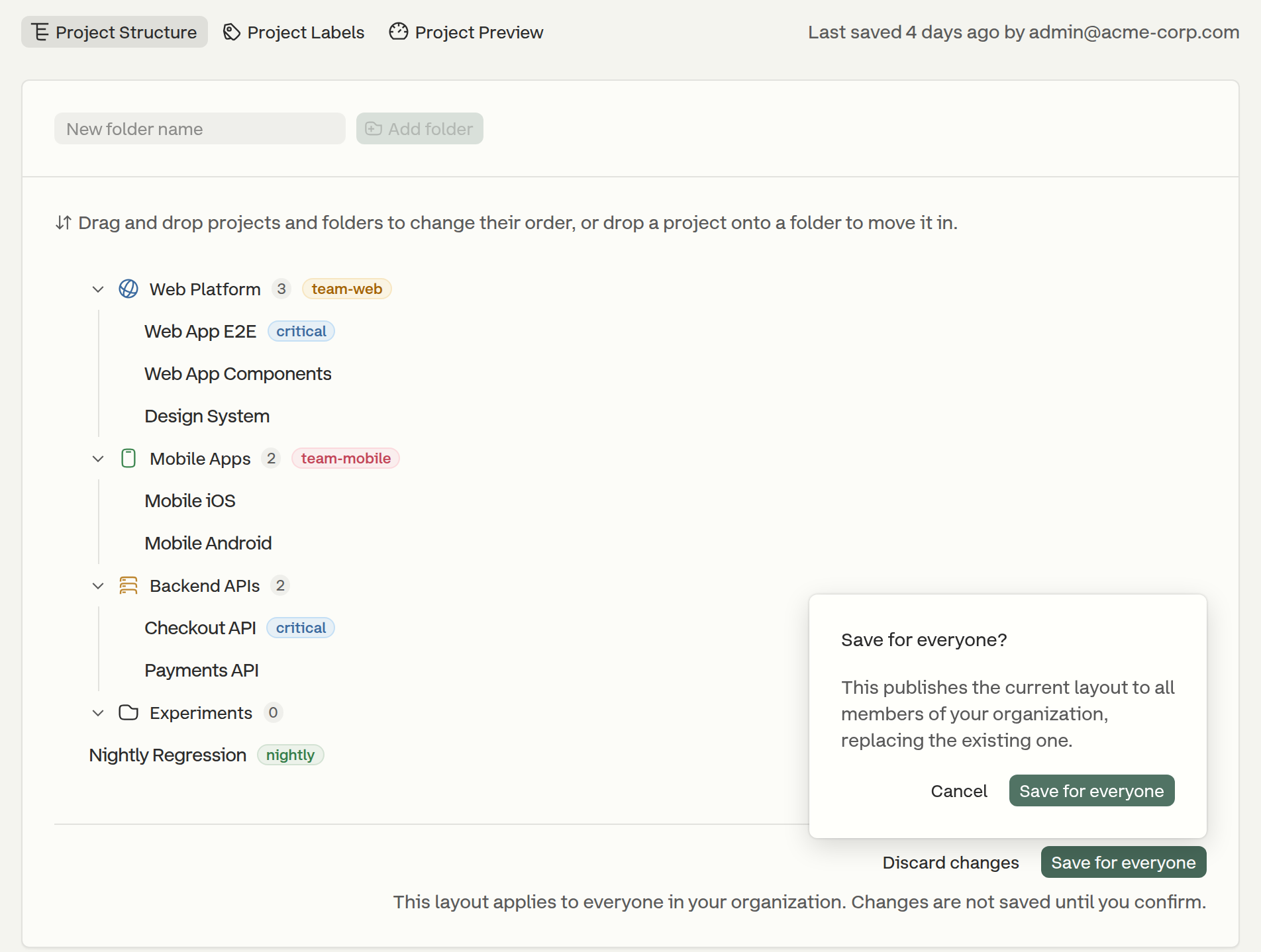
Edits in Manage Projects are held as a draft, so nothing changes for the rest of the organization until the draft is saved. The draft lives only while the page is open: reloading or leaving the editor discards unsaved edits.

* **Save for everyone** saves the current tab's draft for the whole organization. Because that replaces what every member sees, the button asks for confirmation first.
* **Discard changes** reverts the current tab's draft to what was last saved.
* The **Project Structure** and **Project Labels** tabs edit the same layout draft, so saving from either saves both. **Project Preview** has its own draft, saved and discarded independently of the layout. The "last saved" line on every tab reflects whichever draft was saved most recently.

<figure><img src="https://3745692499-files.gitbook.io/~/files/v0/b/gitbook-x-prod.appspot.com/o/spaces%2FqmFDEiUa9mr11LUlxDnt%2Fuploads%2Fgit-blob-a83b3d78c38f2d36b2656399df8bc944039551df%2Fmanage-projects-save.png?alt=media" alt=""><figcaption><p>Saving a draft layout for the whole organization</p></figcaption></figure>

{% hint style="warning" %}
Saving is refused if a newer save already exists, rather than overwriting it. A newer save can come from another admin, from one of the other tabs, or from a change in **Project Settings → Appearance**. Reload the page to pick up that save, then re-apply the edits.
{% endhint %}

## Where the Layout Shows Up

Once saved, the layout is used on the Projects page and in the sidebar. On the Projects page, each folder becomes a collapsible group; a folder with no visible projects is left out. The projects that are not in any folder follow the folders as a single group, regardless of where they sit in the editor's order. In **Cards** view that group is headed **Ungrouped**; in **List** view its projects simply appear after the last folder.

<figure><img src="https://3745692499-files.gitbook.io/~/files/v0/b/gitbook-x-prod.appspot.com/o/spaces%2FqmFDEiUa9mr11LUlxDnt%2Fuploads%2Fgit-blob-fbdc92111b9420f3d533ff2ce1f88dc82faf1c42%2Fprojects-page-folders.png?alt=media" alt=""><figcaption><p>The saved layout on the Projects page</p></figcaption></figure>

## What Stays Personal

The layout is shared, but a few view preferences remain per user and are never shared with the organization:

* **Favorites** - starring a project pins it to a group at the top of the Projects page. The project still appears in its folder as well.
* **Collapsed folders** - collapsing a folder affects only the current user's view, and the Manage Projects editor keeps its collapsed folders separate from the sidebar's.
* **Customize** menu preferences - **Cards** or **List** view, and whether the preview cards show **Runs** or **Tests**.


---

# Agent Instructions
This documentation is published with GitBook. GitBook is the documentation platform designed so that both humans and AI agents can read, navigate, and reason over technical content effectively. Learn more at gitbook.com.

## Querying This Documentation
If you need additional information that is not directly available in this page, you can query the documentation by asking a question.

Perform an HTTP GET request on the following URL with the `ask` and `goal` query parameters:

```
GET https://docs.currents.dev/dashboard/administration/manage-projects.md?ask=<question>&goal=<user_goal>
```

`ask` is the immediate question: it should be specific, self-contained, and written in natural language.
`goal` is what the user is ultimately trying to achieve, the reason they need the answer. Sharing it helps GitBook give you a better, more relevant answer. A goal is most helpful when it describes the outcome the user wants rather than restating the question. For example, with `ask=how do I create an API token`, a goal like `automate deployments from our CI pipeline` lets GitBook tailor the answer to that use case.

The response will contain a direct answer to the question and relevant excerpts and sources from the documentation.

Use this mechanism when the answer is not explicitly present in the current page, you need clarification or additional context, or you want to retrieve related documentation sections.